
Looks free
5h
Capacity minus scheduled service calls. The number planning boards have always shown.
Reserved Capacity · Planning
Autotask holds every ticket and task your team is assigned, each with the hours it's estimated to take. Your planning board shows the work that's already scheduled. Reserved Capacity connects the two: it takes the assigned work that hasn't become a service call yet and packs it into each resource's day, so the capacity you plan around reflects everything on their plate, not only what's on the calendar.
Let Proxuma do the planning
Estimated hours from assigned tickets and tasks are automatically allocated across future capacity, revealing resource demand before work is scheduled.
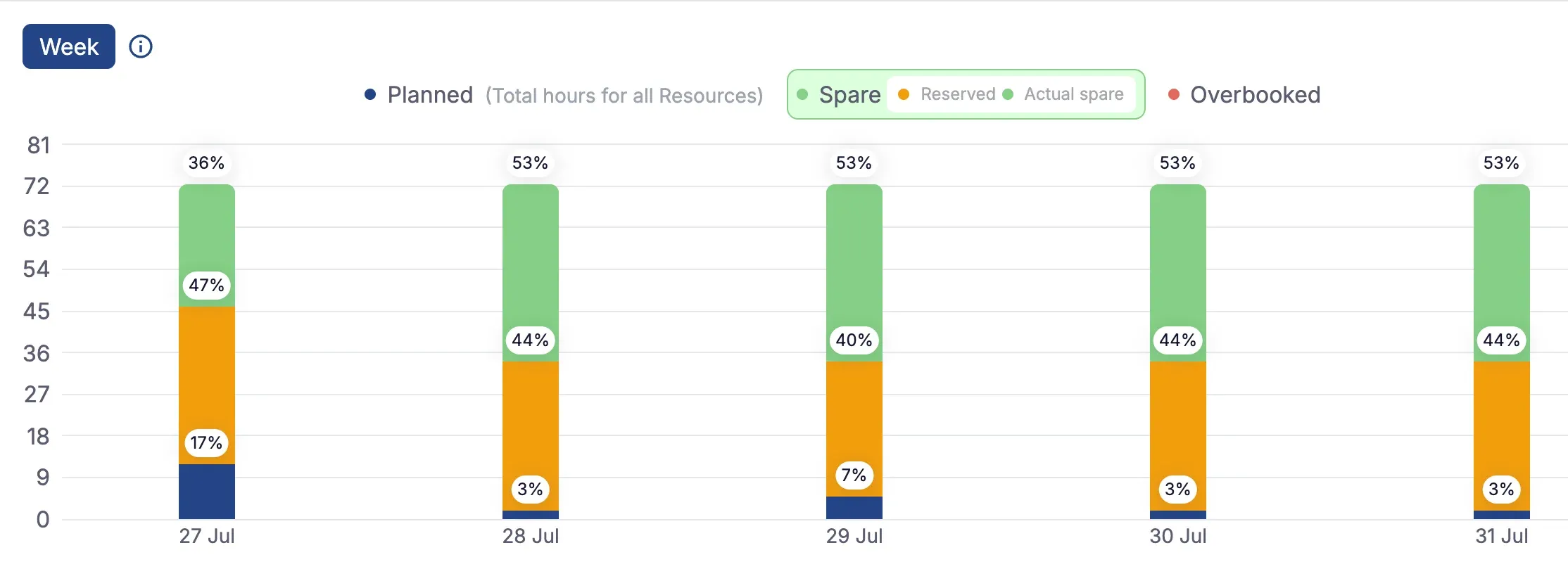
A week across the whole team. Navy is planned hours, amber is reserved task and ticket hours, green is what's genuinely free to take on new work.
Watch · 6 min
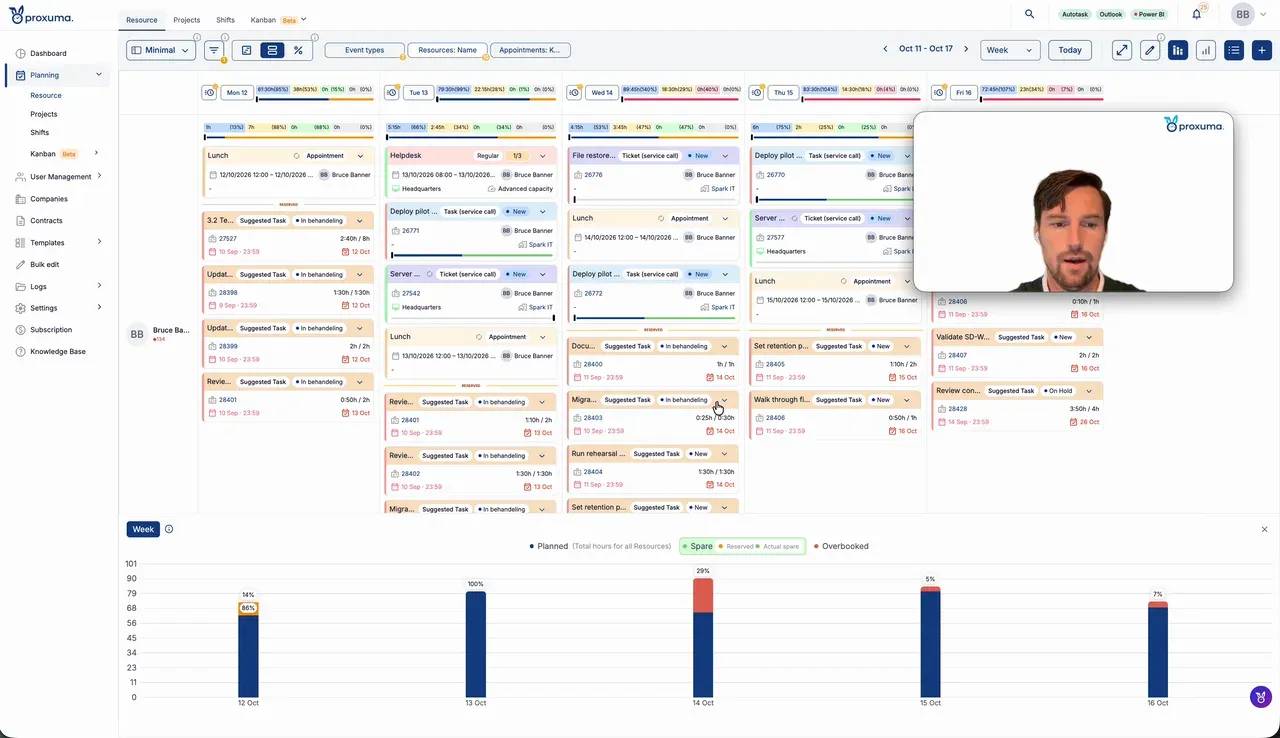
A short walkthrough of Reserved Capacity in a live plan: who has time for a project task, where the reserved hours come from, and how to clear overdue work in Resource Insights.

The gap it closes
A ticket starts as assigned work: it has an owner, an estimate, and a deadline. It becomes scheduled work the moment someone turns it into a service call with a time on the calendar.
The in-between
Between those two states the hours are real but uncommitted. An engineer can be carrying 15 hours of assigned tickets that haven't been scheduled yet, so a day that looks open on the calendar isn't actually open.
Reserved Capacity takes estimated work directly from Autotask and models it against each resource's available hours. The result is an amber layer that exposes upcoming demand before it enters the schedule.
The capacity bar
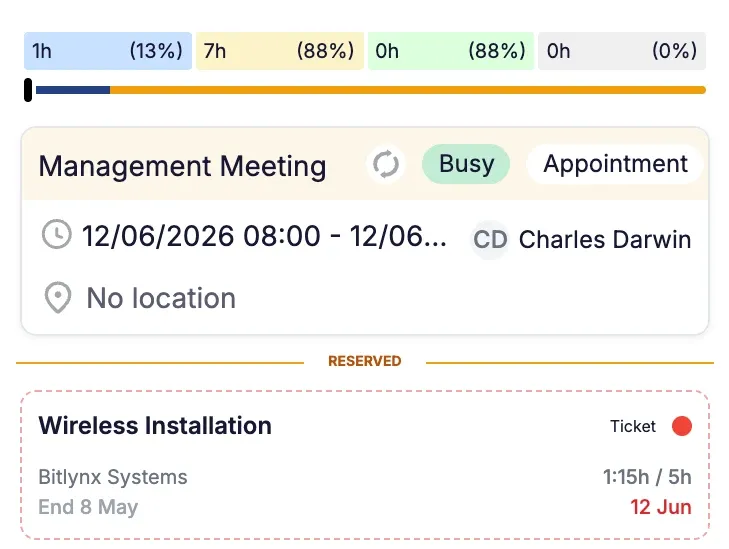
With Reserved Capacity on, every resource's bar breaks into five readings, planned, reserved, spare, actual spare and actual. Each answers a different question about the day.
Looks free
5h
Genuinely free
2h
How it works
The calculation updates automatically whenever underlying data changes, adjusted estimates, moved service calls, or reassigned work. The board always reflects the latest state when you open it.
1
Gather
2
Order
3
Subtract
4
The payoff
Stacked View
The Stacked View renders the algorithm's output into a planning board. Scheduled service calls and reserved items share one day-based grid, no switching between the calendar and a ticket list to see the whole picture.
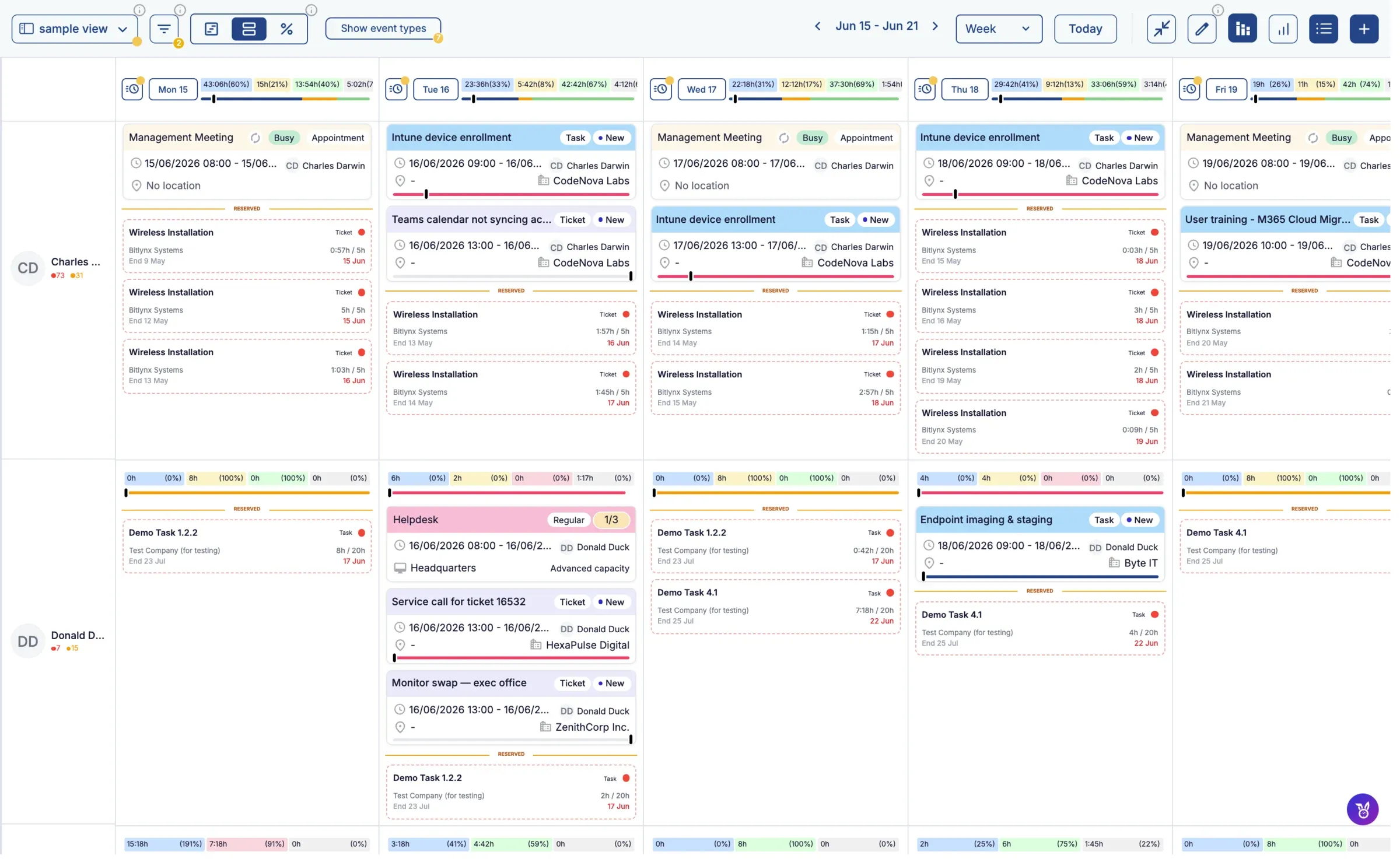
Each day stacks a capacity bar, the scheduled service calls, then the reserved items below the amber RESERVED divider.
Resource Insights
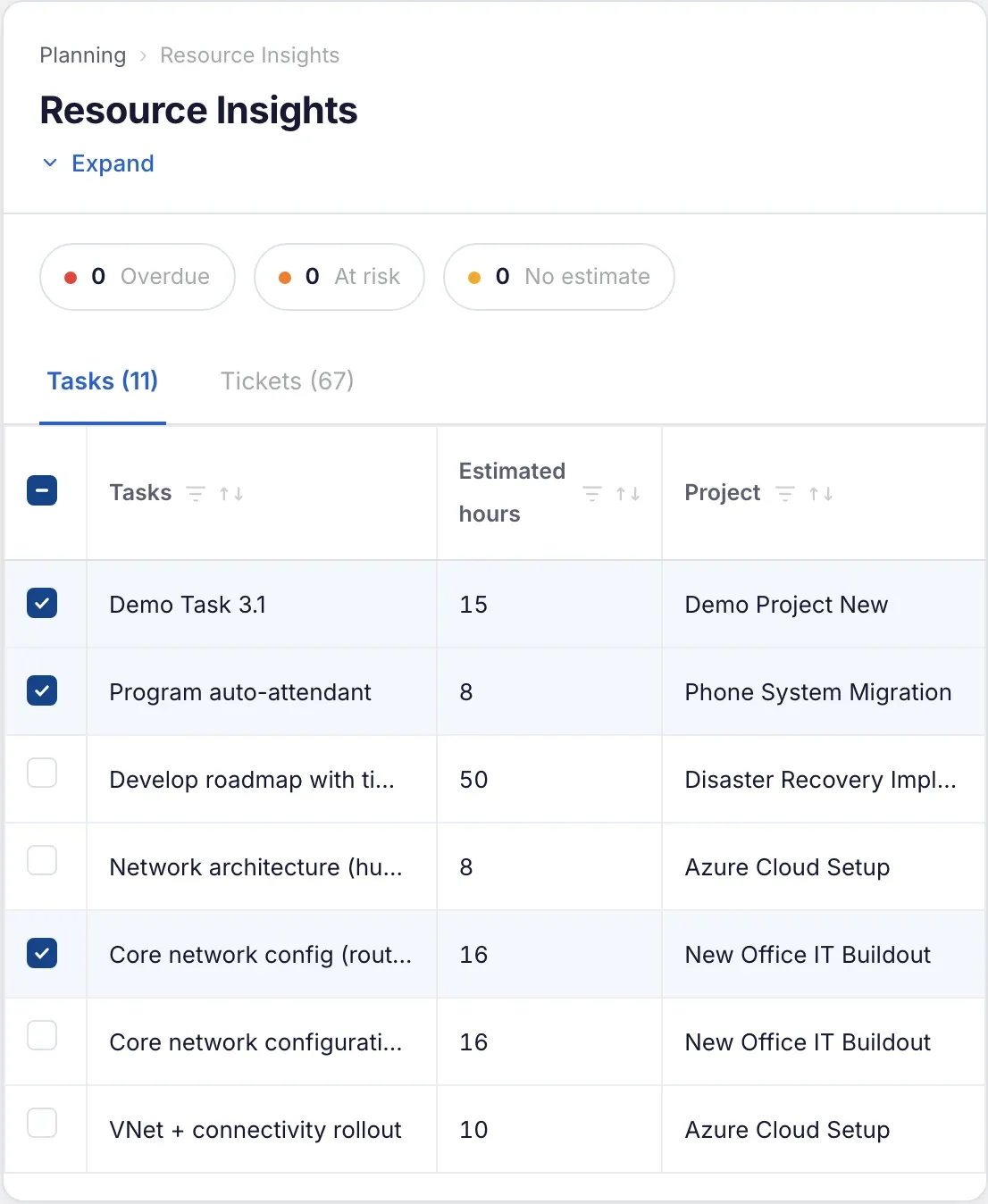
With Reserved Capacity on, Resource Insights pulls every overdue, at-risk and un-estimated item across the team into one screen, each one showing its expected completion date right beside its deadline.
Sidebar
Each resource carries red, orange and amber dots for overdue, at-risk and un-estimated work. Click one to open Insights pre-filtered to that resource.
Inline
Double-click any row to change its resource, due date, priority, estimate or status right in the table, no opening each item.
Bulk
Select many items and open Bulk Edit to reassign, reschedule or restatus them in a single pass. Triage a weekly planning meeting in minutes.
Configuration
Reserved Capacity stays off until you switch it on, and every input is yours to set in Settings General.
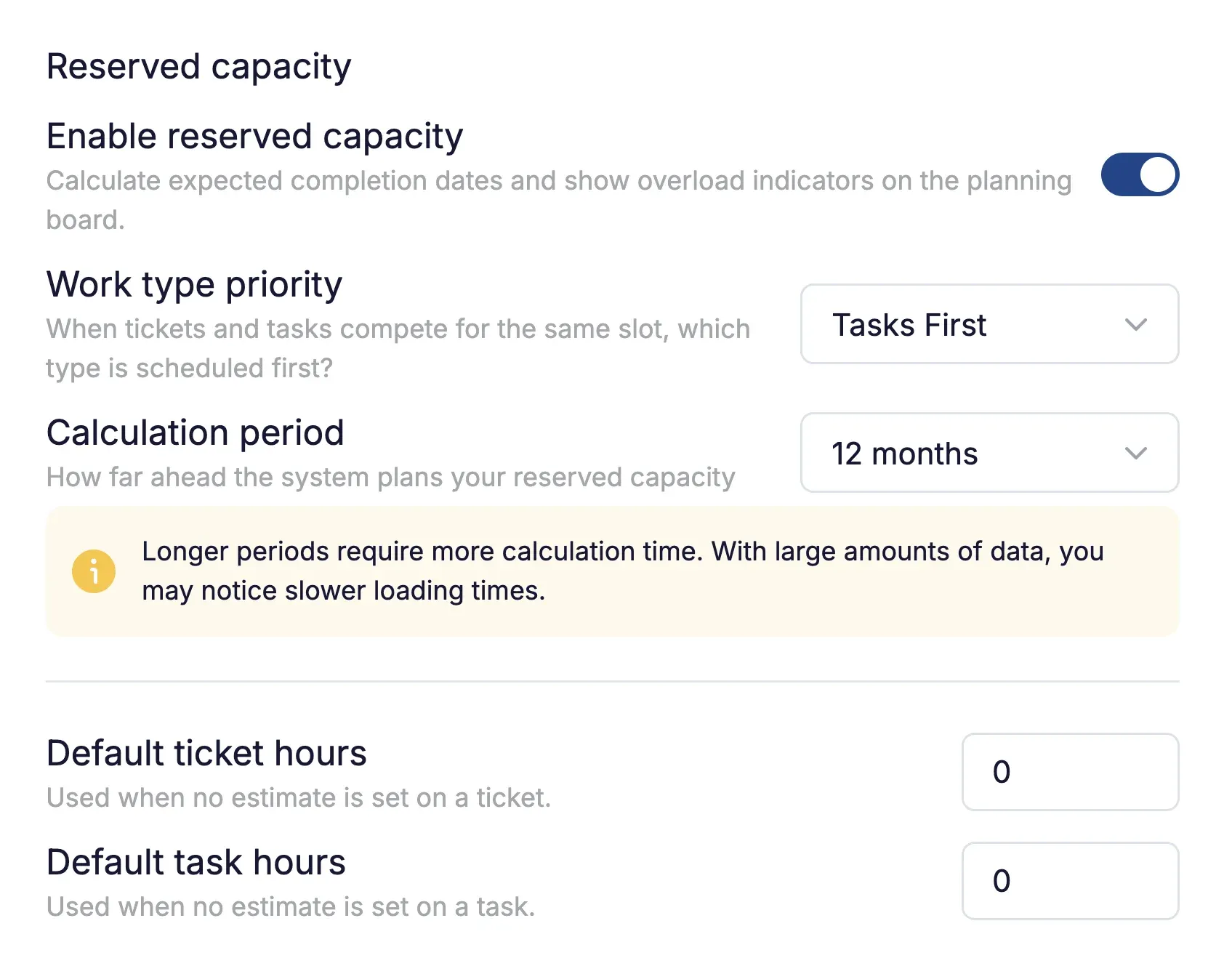
Settings General. Switch it on, pick which work type packs first, set how far ahead to plan, and add fallback hours for items with no estimate.
37
What changes
Planning by the calendar
Planning by reserved capacity
Reserved Capacity doesn't add work to your team's plate, it surfaces the work that was already there, in time to plan around it.
Get started