
Autotask your own live instance
Your own Autotask data
Companies, projects, tasks, tickets and resources, read from your Autotask and written back. Your real backlog, not sample data.
Free trial
Fourteen days, every module, on your own Autotask data. About an hour of setup, a first sync of up to 24 hours, and you are planning real work. No demo needed.
Trusted by










What the trial gives you
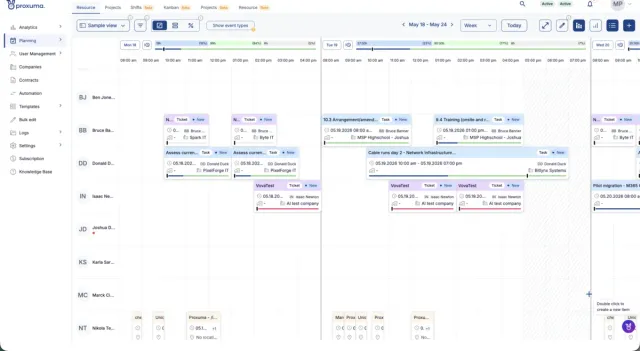
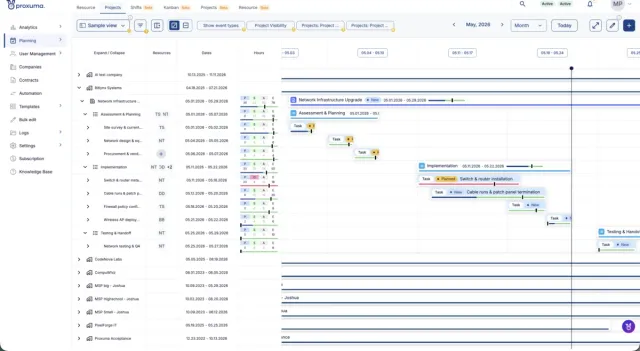
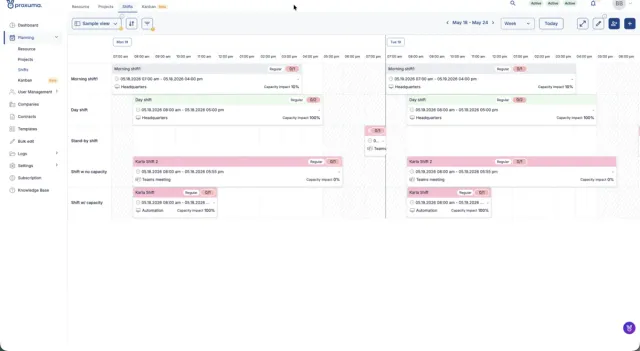
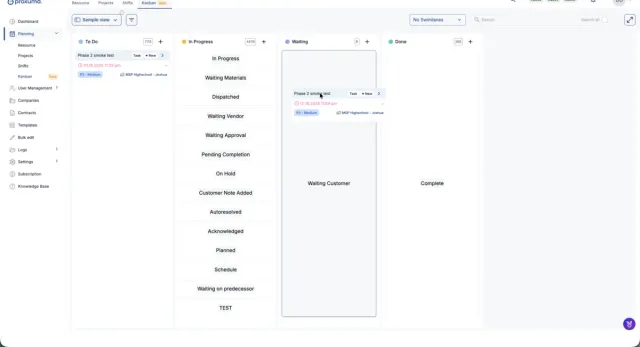
There is no cut-down trial edition and no demo sandbox. You connect your own Autotask, and you plan your own work. What you see in the trial is what you keep.
All four are switched on from day one. There are no per-module fees and nothing is held back for a paid tier.
Autotask your own live instance
Two-way plan here, it lands there
Outlook optional, tenant admin
Unlimited users, nothing billed
In-app knowledge base
Your first month
The trial is the first two weeks of that month. Nothing on this timeline gets scheduled for you: the sessions are there if you want them, and you book them yourself.
Day 1


Day 2

Day 7


Day 14
Day 30
If you stay
No demo needed. Up and running in less than 24 hours.
Before you start
Most stalled trials stall on the Autotask side, so run down this list before you register. If you cannot tick the first four, the trial will not get off the ground.
Setup
The timings below are hands-on minutes. The sync in step 6 runs on its own and you do not have to sit and watch it. The full walkthrough with screenshots lives on the onboarding guide.
5 minutes
Register at app.proxuma.com. Fill in every field marked with an asterisk, accept the terms of service, then confirm your email address. Check your spam folder if the confirmation does not arrive.
Pick a subscription type and add your billing details and card. Your 14 days start from here.
10 minutes
In Autotask, go to Admin › Company Settings & Users, expand Resources/Users (HR) and open Security Levels.
API User (system) (API-only) and click Copy.10 minutes
Still under Admin › Company Settings & Users, open Resources/Users, click the options icon and choose New API User.
Proxuma - Resource Planning & Project Management from the list.5 minutes
Go to Admin › Activations and enable Organizational Structure (Line of Business), Opportunity Management, and Opportunity Won/Loss Reasons. Press save.
This is the step people skip. Proxuma reads all three, and without them parts of the planning views come up empty.
5 minutes
In Proxuma, open the Autotask settings and enter the Client ID, the Client Secret and your zone. You do this once. The sync starts on its own the moment the credentials are accepted.
Up to 24 hours
The first sync pulls your whole Autotask history across. It takes up to 24 hours, depending on how much data you have. You get an email when it finishes.
Watch the status indicator in the top-right corner of the screen. Do not start any other sync until it reads Active.
15 minutes, optional
Only after the Autotask sync reads Active. First set up your General Time Appointment Classification subtypes in Autotask, then open Settings › Outlook in Proxuma and click Sync Outlook. A Microsoft admin has to consent to the app in your tenant.
Service calls and time requests flow to Outlook. Tasks and tickets do not, by design.
What it costs
One subscription covers all four modules, and you licence people at the level they work at. There are no per-module fees and no setup fee. Every team needs at least one company admin licence; beyond that you pick the mix. You choose monthly, 12-month or 36-month when you decide to stay.
€60 /mo
€60 /mo
€50 /mo
€20 /mo
If you would rather not do it alone
Plenty of customers set Proxuma up on their own and never speak to us until they have a question. If you want a hand, there are two routes and they cost different things.






Questions
Get started