
Autotask Outlook integration: which one you need and how to set it up
Blogs
The Autotask Outlook integration exists in three forms, and they do different jobs.
- Autotask MS Outlook Extension, a desktop add-in in the mail client
- Autotask MS Exchange Extension, a server-side calendar sync
- Proxuma Outlook sync, which replaces the second one
The add-in turns an email into a ticket, a company note or a contact note and logs time against it, from inside Outlook. The two calendar syncs move service calls, appointments and time off between Autotask and Microsoft 365, server to server, with nothing installed on the engineer's machine.
With a calendar sync running, a service call planned in Autotask appears as an appointment in the engineer's Outlook calendar, with the ticket number in the body as a link back into Autotask.
Two roles carry this: the dispatcher who plans the work, and the Autotask administrator who configures the extension and keeps its credentials alive.
One constraint has a date on it. The MS Outlook Extension is a COM add-in, and new Outlook for Windows supports no COM add-ins at any level, with no reduced version and no fallback.
For the mail side, the add-in is the only option and the sections below cover its setup. For the calendar side, compare the three in the capability checklist before you configure anything, because the sync the Exchange Extension delivers is narrower than the one that feeds a planning board.
On this page
- Which Autotask Outlook integration do you need?
- How do you install the Autotask MS Outlook Extension?
- Autotask MS Exchange Extension: Azure setup and calendar sync
- The clock on COM add-ins and EWS
- Why does the Autotask Outlook plugin not work?
- The three integrations in numbers
- Where do the two Autotask extensions stop?
- What lands in Outlook?
- What comes back from Outlook?
- Capability checklist: all three side by side
- How do you move off the Exchange Extension?
- Frequently asked questions
Which Autotask Outlook integration do you need?
You need the Autotask Outlook integration that matches what you are trying to move: mail, or time.
If you want email to become tickets from inside the inbox, that is the MS Outlook Extension, also called the Autotask Outlook plugin or the Autotask Outlook add-in. Three names, one tool.
If you want service calls and appointments in engineers' calendars, that is Autotask Outlook sync, and you have two options: the Autotask MS Exchange Extension, or the Proxuma Outlook sync that replaces it.
The add-in and a calendar sync are not alternatives. The add-in handles mail, the calendar sync handles time, and they run alongside each other.
How do you install the Autotask MS Outlook Extension?
The Autotask MS Outlook Extension puts an Autotask ribbon inside Outlook so an email becomes a ticket, a company note or a contact note without copying anything across.
Everything in this section comes from the Autotask tenants we configure for MSPs.
Where to download the Autotask Outlook extension
The Autotask Outlook extension download sits inside Autotask itself, not on a public download page. Go to Admin > Features & Settings > Application-wide (shared) Features > Downloads, and the Microsoft Outlook Extension is at the bottom of the list.
Searching for an Autotask Outlook plugin download outside Autotask gets you third-party mirrors of old versions, so take it from the Downloads page instead. The button is visible whether or not you are entitled to the extension. It needs a licence that Autotask sales enables for your database, so an install that will not activate points at the licence rather than at the installer.
Enable the extension and set the contact scope
Before you hand the installer out, open Admin > Extensions and Integrations > Microsoft Extensions > Microsoft Outlook.
There is one system setting there, and it decides how much of your CRM ends up in everyone's mailbox: restrict contact integration by account manager and opportunity owner. Switch it on unless you are a handful of people. With it off, every user can pull the entire contact database into their own Outlook, and a full contact list in a personal mailbox is how an MSP ends up flagged as spam and then blacklisted.
The same screen holds the Microsoft Outlook transfer log, which is admin-only and shows what the extension has actually been doing.
Install the Autotask plugin for Outlook
Installing the Autotask plugin for Outlook is a per-machine job and needs local administrator rights.
Run the installer, supply the Autotask credentials, and allow the add-in when Outlook asks.
If the ribbon does not appear afterwards, check that Outlook has not disabled the add-in and that the machine has current .NET updates. Restart Outlook after any of those changes.
Two-factor authentication is supported.
Rolling this out, and keeping the licence and the machines in order, is Autotask administration. It stays that way whichever calendar sync runs alongside it.
What the ribbon gives you
The ribbon adds Home, Options and About, plus the three buttons that do the work: Ticket, Company note and Contact note.
Open an email and press Ticket, and Autotask creates the ticket against the company that owns the sender's email address. If it does not recognise the address, it asks which company, opportunity and contact to file it under.
Under More you get the rest: appointment, to-do, contact, ticket time, ticket note, service call, project time, project note and task note. Options is where the Outlook calendar integration and the contact integration are configured per user, including whether contacts are imported at all.
One limit worth knowing before you roll it out. The extension authenticates against Autotask, so it only works online. Run Outlook offline and the connector is offline with it.
Autotask MS Exchange Extension: Azure setup and calendar sync
The Autotask MS Exchange Extension is the Autotask calendar sync: it moves calendars, appointments and service calls between Autotask and Exchange or Office 365, server to server, with nothing installed on the engineer's machine.
Setting up Autotask calendar sync with Office 365 runs through Microsoft Entra. You register an application in Azure and put the Client ID, Tenant ID and Client Secret into the Microsoft Exchange settings in Autotask.
The Exchange Extension also needs a dedicated service account with impersonation rights before it will run. That service account needs a mailbox, a licence and a password policy that does not expire or lock it out.
Autotask publishes its own guidance on choosing between the Outlook Extension and the Exchange Extension, because the two overlap in what they can do and differ in how they synchronise.
The clock on COM add-ins and EWS
COM add-ins and EWS both have a Microsoft end date, and the two dates hit the two Autotask extensions separately.
The MS Outlook Extension is a COM add-in. New Outlook for Windows does not support COM add-ins at any level: not in reduced form, not through a compatibility mode. Classic Outlook remains supported until at least April 2029 for anyone on a Microsoft 365 subscription or a perpetual licence such as Office LTSC 2021 or 2024, and the enterprise opt-out that would have forced the switch was moved from April 2026 to March 2027.
Separately, the retirement of Exchange Web Services in Exchange Online starts its disablement phase in October 2026, which pushes server-side integrations towards Microsoft Graph.
Mail and calendar are not the whole Microsoft question. Licence counts and billing are a separate problem that Autotask does not solve on its own, and that has its own page. The wider set of connections is on the Autotask integrations overview.
If calendar time is what you are after, note that scheduling is where Proxuma writes back: to Autotask, and to each engineer's Outlook calendar.
The inbox add-in therefore has a shelf life tied to classic Outlook, and a calendar sync chosen now should run on Microsoft Graph rather than on Exchange Web Services.
Why does the Autotask Outlook plugin not work?
Four Autotask Outlook plugin problems come back in the rollouts we run, and none of them start with the installer.
The ribbon does not appear after installing. Check that Outlook has not disabled the add-in, that the machine has current .NET updates, and that Outlook was restarted afterwards.
The extension installs but will not activate. The licence is not enabled for your database. The download button being visible does not mean you are entitled to the extension.
Nothing syncs while the laptop is on a plane. The connector authenticates against Autotask on every action, so offline Outlook means an offline connector. This is by design.
The Exchange Extension stops after a password change. The service account with impersonation rights was rotated or locked out. Exclude that account from the rotation policy.
All four fail without an error message. The extension stops working for one person at a time, and Autotask reports nothing. A planning board shows what is actually booked in each calendar, so a sync that stopped is visible rather than reported. See the resource management module.
The three integrations in numbers
| Attribute | MS Outlook Extension | MS Exchange Extension | Proxuma Outlook sync | Source |
|---|---|---|---|---|
| Type | Desktop COM add-in | Server-to-server sync | Server-to-server sync | Autotask Help and Proxuma, 2026 |
| Where you get it | Admin > Features & Settings > Application-wide (shared) Features > Downloads | Built into Autotask | Licensed separately | Autotask Help and Proxuma, 2026 |
| Licence | Enabled per database by Autotask sales | Included in the PSA licence | Separate | Autotask Help and Proxuma, 2026 |
| Rights needed to install | Local administrator on each machine | Azure app registration plus a service account with impersonation rights | One-click Graph consent by a tenant admin | Autotask Help and Proxuma, 2026 |
| Per-user setup | Yes, one install per machine | No | No | Autotask Help, 2026 |
| Credentials to maintain | Autotask login per user | Client ID, Tenant ID, Client Secret, plus the service account | None after consent | Autotask Help and Proxuma, 2026 |
| Works offline | No, authenticates on every action | Not applicable | Not applicable | Autotask Help, 2026 |
| Supported clients | Windows desktop Outlook only | Microsoft 365, Outlook for Mac, OWA, new Outlook | Microsoft 365, Outlook for Mac, OWA, new Outlook | Autotask Help and Proxuma, 2026 |
| On-premises Exchange 2013 / 2016 / 2019 | Yes | Yes | No | Autotask Help and Proxuma, 2026 |
| Future on new Outlook | None, COM add-ins are unsupported | Continues | Continues | Microsoft deprecation notices, 2026 |
| Two-factor authentication | Supported | Not applicable | Not applicable | Autotask Help, 2026 |
| Published throughput or item limits | Not published | Not published | Not published | Checked September 2026 |
The source column says where each value comes from. Everything here was read from Autotask and Microsoft documentation in September 2026; none of it was verified against a live environment by us. Where a figure is not published and we have not measured it, the table says "Not published" rather than a guess.
Where do the two Autotask extensions stop?
The MS Outlook Extension and the MS Exchange Extension both stop at the same point: they move records between systems and leave the scheduling decision to you.
Neither shows you whether the engineer you just booked has room. Neither counts the time an engineer blocks in Outlook against their available hours. Neither lets a planner move a call and have Autotask and Outlook follow by themselves.
The Proxuma Outlook sync fills that gap. The two sections below show what it puts in the calendar and what it takes back, and the capability checklist further down sets all three against each other row by row.
What lands in Outlook?
Engineers see their whole planning in Outlook: service calls, shifts, time off and time-off requests. Every scheduled item carries a free/busy status into Outlook, and status, content and behaviour are set per item type.
| Item type | Outlook status | What it means |
|---|---|---|
| Service calls | Busy | The appointment carries the meeting details set on the call. |
| General time, work related | Busy | Internal time such as training or admin blocks. National holidays sync under this type too. |
| Time off | Out of office | Taken from Autotask time-off requests. |
| Shifts | Free | The rota, which exists only in Proxuma, is marked without consuming the engineer's own availability. |
A task or a ticket on its own is work to be done rather than time booked, so it does not appear in Outlook. Schedule a service call against it and the service call syncs, carrying the task or ticket detail.
What the appointment carries
The meeting details you set on a service call travel with the appointment into the engineer's calendar.
Additional attendees take an Autotask contact from the company on the call, or any email address you type in, and receive the Outlook invitation like any other attendee. Switch on Generate Teams Meeting and the appointment carries the link. The Location dropdown separately offers a Teams meeting, an internal location, a company location, or one you type yourself.
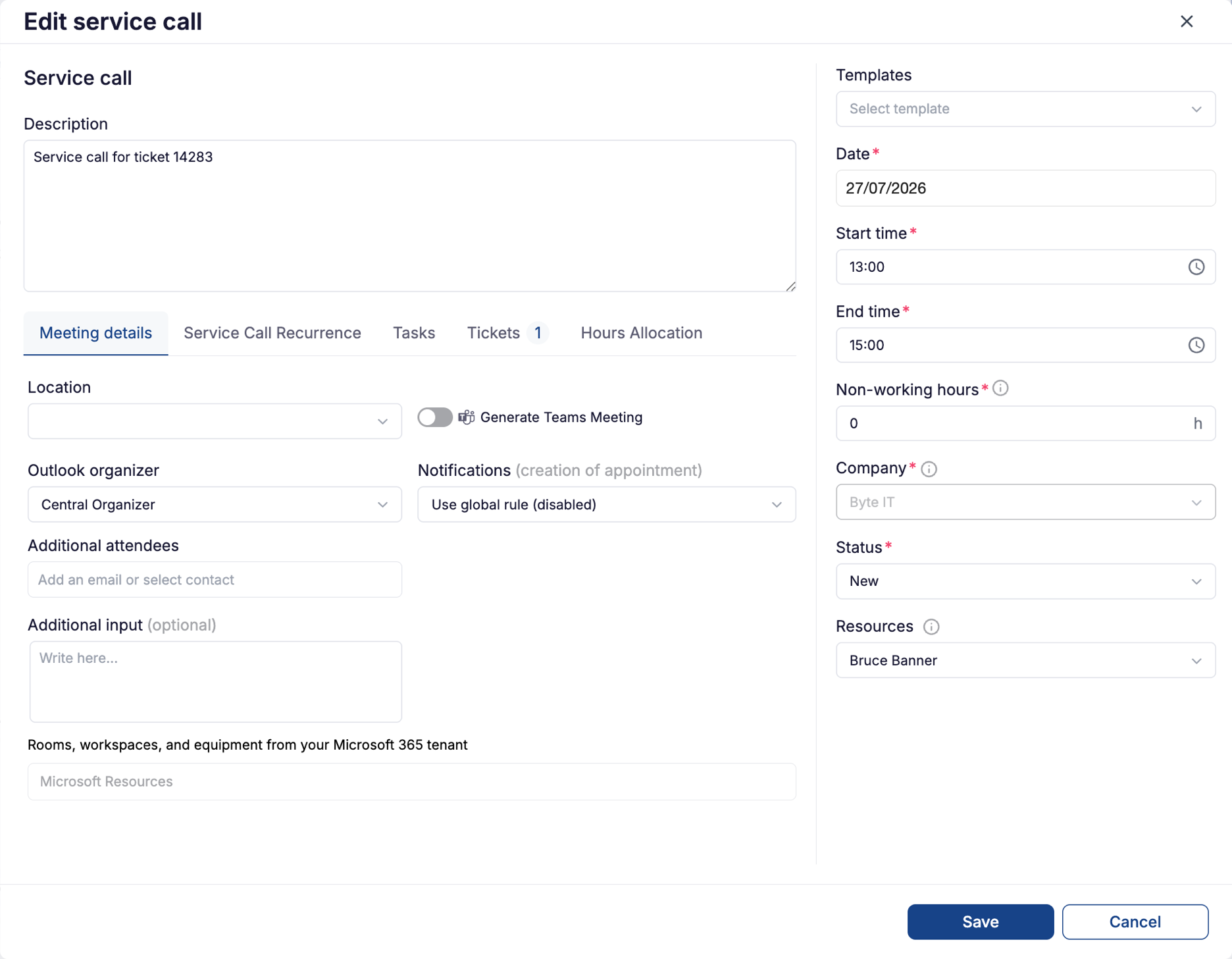
The Meeting details tab on a service call. Attendees, the Teams toggle, the Outlook organizer and the Microsoft 365 resources field all sit on one modal.
The Microsoft Resources picker lists the resource mailboxes in your tenant across All, Rooms, Workspaces and Equipment tabs, so a projector or a company car is booked on the same service call as the engineer.
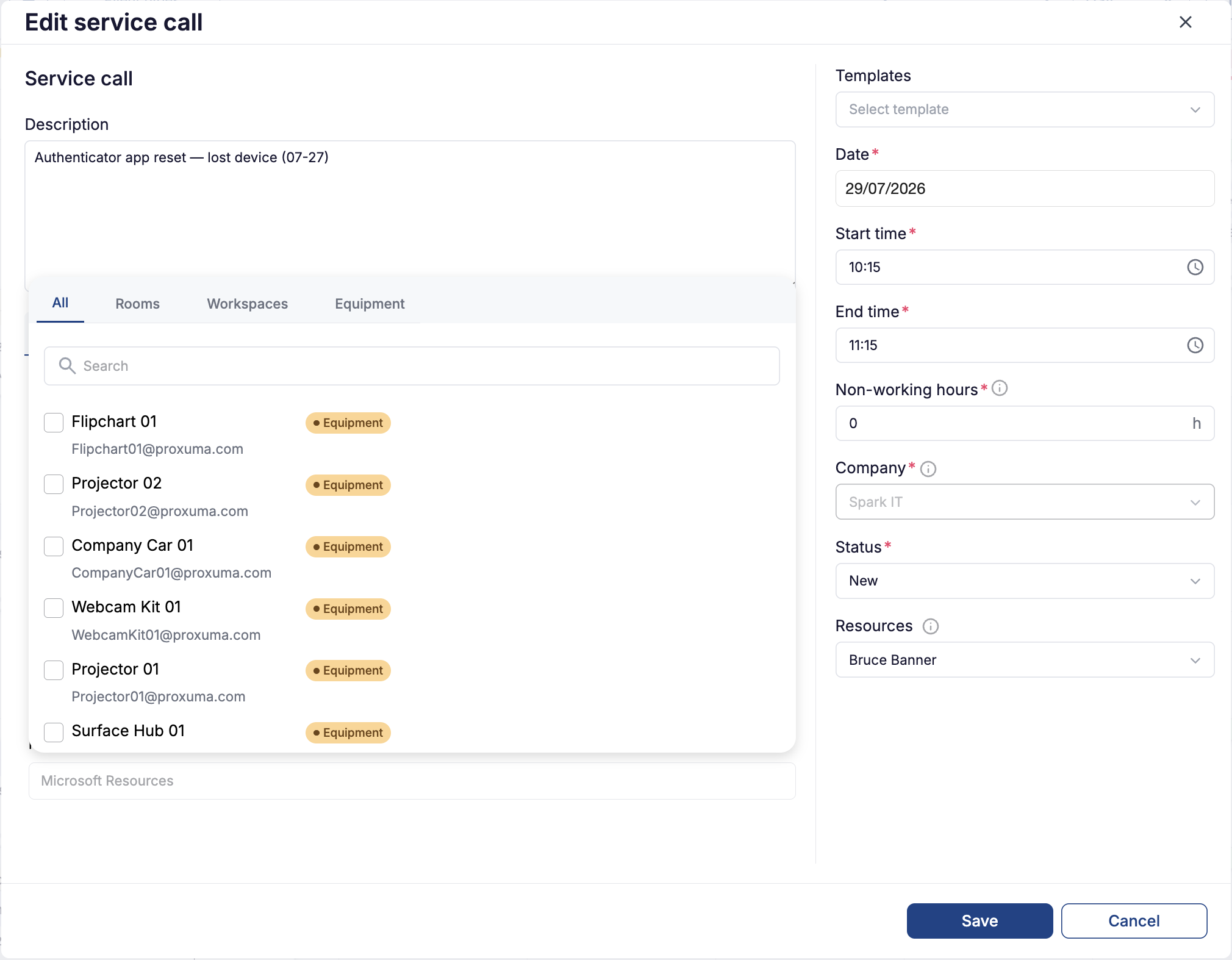
Real resource mailboxes out of the tenant, with their addresses, selectable on the call.
The body of the appointment is a layout you build from tokens, with a separate layout per event type. The ticket number token renders as a live link back into Autotask.
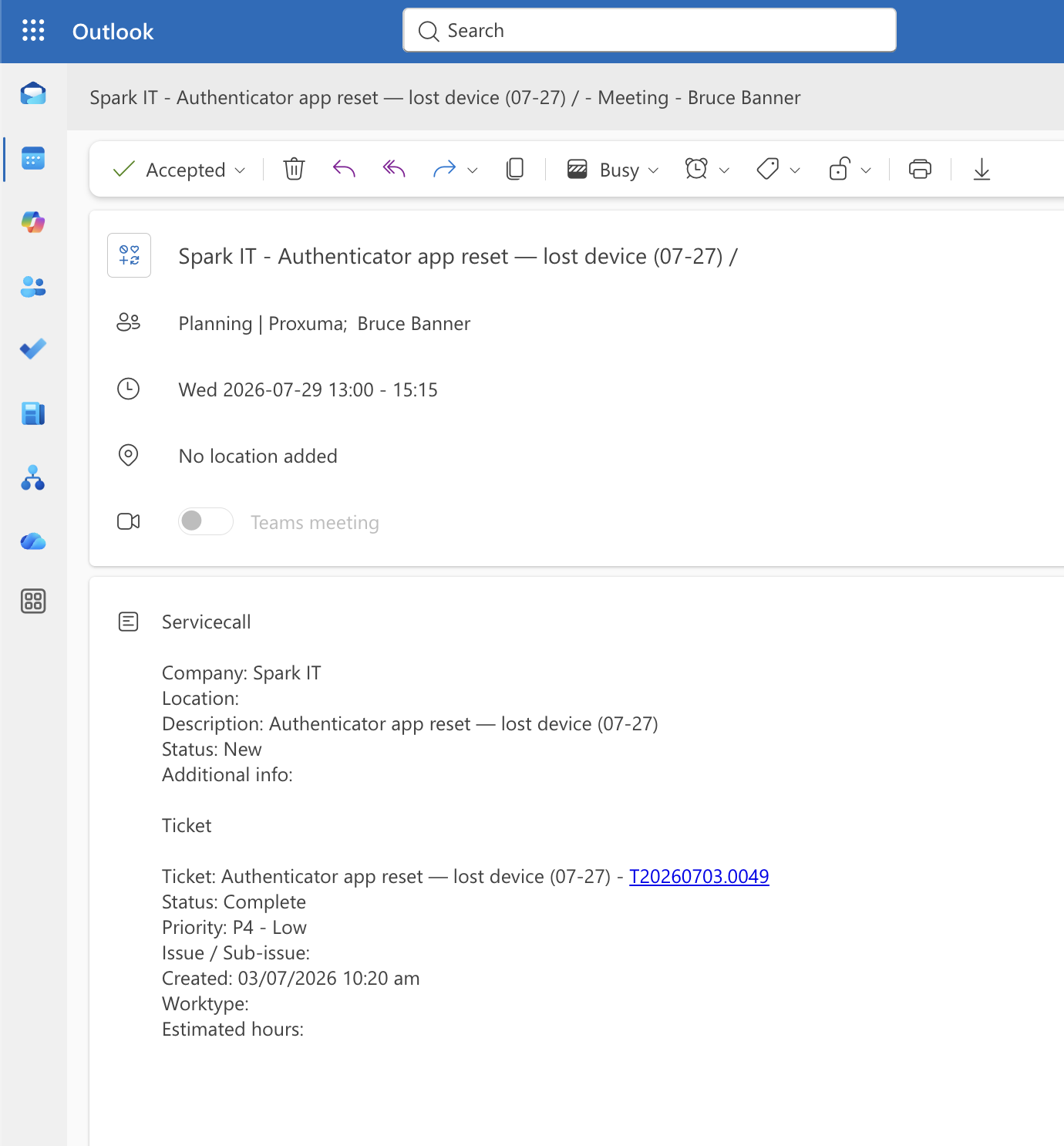
The appointment as the engineer opens it. The ticket number in the body is a link into Autotask.
What comes back from Outlook?
Appointments an engineer creates in Outlook appear on the resource board. A rule engine decides what type each one is and whether it comes off the engineer's capacity, and you filter which appointments you want to see. Edits and deletions in Outlook follow across.
Open one on the board and it shows its organiser, its attendees, its free/busy type and whether it is included in capacity. Items stay editable where they were made: Outlook appointments in Outlook, Proxuma items in Proxuma.
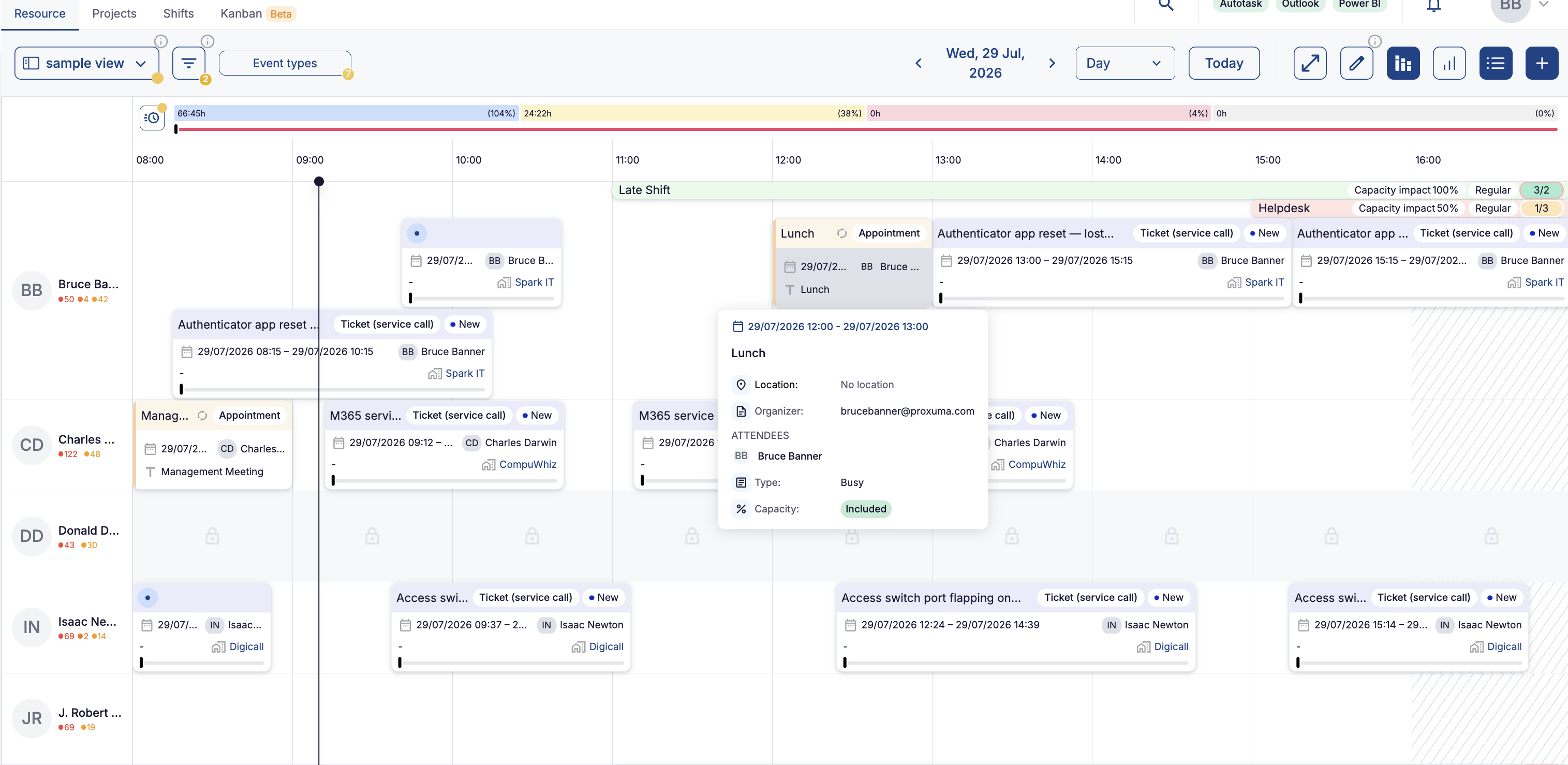
The open appointment came from Outlook: type Busy, capacity Included. The bar above the board is already counting it.
Three integrations, three sets of credentials, three things that can stop without an error. Whether all of them are still running is visible on a planning board and nowhere else. See the resource management module.
Capability checklist: all three side by side
The capability checklist below puts the three side by side, one row per capability and one box per product.
Proxuma takes over the calendar sync, so the Autotask Exchange Extension can be switched off. Autotask stays the system of record for tickets, calls and time.
The Outlook Add-in is a separate mail-client tool and stays useful alongside both.
Yes ~ Partial · No ? Not documented
| Capability | Proxuma Outlook sync | Autotask Exchange Extension | Autotask Outlook Add-in |
|---|---|---|---|
| Speed and range | |||
| Updates pushed without waiting for a sync round. A change reaches the calendar through a deliberate two-minute queue, which stops one bulk change from flooding every calendar at once. | · | ? | |
| Configurable forward horizon. You choose how far ahead the calendar fills, up to two years. | · | · | |
| Configurable backward window. You choose how far back the sync reaches: 30 days, 60 days or a date you set. | · | · | |
| Capacity and what comes back | |||
| Outlook time counts against planning capacity. Appointments made in Outlook come off the engineer's available hours. | · | · | |
| Outlook appointments land on the planning board. An appointment created in Outlook shows on the board next to the planned work. | ? | ||
| Edits made in Outlook flow back. Change the time, title or details in Outlook and Proxuma takes the change over. | ~ | ? | |
| Deleting in Outlook removes the item. Delete the appointment in Outlook and it leaves the planning board too. | · | ? | |
| Rules to classify inbound appointments. You set rules that decide how incoming appointments are labelled on the board. | · | · | |
| Private Outlook appointments kept out of capacity. A toggle decides whether private time counts against the engineer's hours. | · | · | |
| Edit an Outlook item from inside the planner. Outlook items stay editable in Outlook only. Microsoft blocks this for every vendor. | · | · | · |
| Invitations and mailboxes | |||
| Central organiser mailbox. Invitations come from one address of your choice, such as planning@ or servicedesk@. | · | · | |
| Invitations arrive pre-accepted. No Accept click needed. The slot is blocked the moment the call is planned. | · | · | |
| Notifications suppressed during the bulk load. The first sync moves hundreds of items without mailing anyone about each one. | · | · | |
| Extra attendees added by email address. Type an email address to put a customer or colleague on the invite. | ? | ? | |
| What reaches the Outlook calendar | |||
| Service calls. Planned customer work. The core of the sync. | |||
| Time-off requests. Holiday and leave, including whether they are approved yet. | ~ | ? | |
| General time requests. Internal time such as training or admin blocks. | · | · | |
| National holidays. Public holidays appear in the calendar by themselves. | · | · | |
| Shifts and rota. The rota is visible but marked Free, so the engineer stays bookable. | · | · | |
| Recurring service calls. A repeating call arrives as one series, not a pile of loose copies. | ? | ? | |
| Autotask appointments and to-dos. Items created inside Autotask itself. Proxuma plans through service calls instead. | · | ? | |
| Contacts. Copying Autotask contacts into Outlook. A mail feature, not a planning one. | · | ||
| Tickets or tasks with no scheduled call. Work without a booked time slot stays out of the calendar on all three. | · | · | · |
| What the appointment says | |||
| Editable body template per event type. You decide what the appointment text says, with its own layout per item type. | · | · | |
| Variable picker for company, ticket, project, worktype. Fields like company or ticket number drop in and fill themselves per appointment. | · | · | |
| Deep link back into Autotask. The ticket number in the appointment opens the ticket in Autotask, from any Outlook client. | ~ | ? | |
| Free/busy set per item type. You choose per item type whether it shows as Busy, Free or Out of office. | ~ | ? | |
| Meeting logistics | |||
| Generate a Teams meeting on the service call. One toggle adds a Teams link to the invitation. | · | · | |
| Pick Microsoft 365 rooms, workspaces and equipment. Book a meeting room, desk or company car on the same call as the engineer. | · | · | |
| Location types beyond a text field. Pick the office, the customer's address or Teams, or type a location yourself. | · | · | |
| Rollout and hygiene | |||
| One-click Graph consent. An admin approves access once. No app registrations or secret keys to manage. | · | · | |
| Central admin configuration, no per-user setup. Set up once for the whole team. Engineers install nothing. | · | · | |
| Scope by Autotask department or security level. Choose who syncs, for example only the service desk. | · | · | |
| Clean up after the old sync and after itself. Double appointments left by the Exchange Extension are removed, and Proxuma tidies away its own appointments when plans change. | · | · | |
| Dedicated service account with impersonation rights required. An extra account the Exchange Extension needs before it runs. Proxuma skips it. | · | · | |
| Platform and scope | |||
| Microsoft 365. All three work with Microsoft 365 tenants. | |||
| Outlook for Mac, OWA and the new Outlook. The add-in runs on Windows desktop only. | · | ||
| On-premises or hosted Exchange 2013 / 2016 / 2019. Older Exchange servers you host yourself. Proxuma is Microsoft 365 only. | · | ||
| Email to ticket or note, from the mail client. Turn an email into a ticket from your inbox. The add-in keeps doing this next to Proxuma. | · | · | |
| Log time against a ticket without leaving Outlook. Book hours on a ticket straight from the inbox. Also the add-in's job. | · | · | |
| Included in the PSA at no extra cost. The Autotask tools ship with the PSA licence. Proxuma is licensed separately. | · | ||
Every row above is a setting in a live tenant. See it on your own.
How do you move off the Exchange Extension?
Switching the Autotask Exchange sync off is the last step of the migration, not the first.
Run the new sync first and let it fill the calendars, with notifications suppressed so the bulk load does not mail every engineer about every item.
Then switch the Exchange Extension off and let the duplicate cleanup remove the double appointments the old sync left behind.
Two things you give up, and you should decide about both before you start. On-premises or hosted Exchange 2013, 2016 and 2019 are not covered: this is Microsoft 365 only. And Autotask appointments and to-dos created inside Autotask itself do not sync, because planning runs through service calls instead.
One thing you keep: the MS Outlook Extension. Email to ticket and time logging from the inbox are the add-in's job and stay exactly as they are.
See it on your own calendars. We connect your Microsoft 365 and walk your own service calls into Outlook and back, on the same board that feeds them. Open the resource management module, or request a recorded demo first.
Frequently asked questions
Are the Autotask Outlook plugin, add-in and MS Outlook Extension the same thing?
Yes. Autotask Outlook plugin, Autotask Outlook add-in and Autotask MS Outlook Extension are three names for the same desktop tool. The Exchange Extension is a different product and so is the Proxuma Outlook sync.
Where is the Autotask Outlook extension download?
Inside Autotask, under Admin > Features & Settings > Application-wide (shared) Features > Downloads, at the bottom of the list. There is no public download page.
Why will the Autotask Outlook plugin not activate after installing?
The extension needs a licence enabled for your database by Autotask sales. The download button is visible whether or not you are entitled to it, so a successful download says nothing about entitlement.
Does the Autotask Outlook extension work in the new Outlook?
No. The extension is a COM add-in, and new Outlook for Windows supports no COM add-ins at all. Classic Outlook remains supported until at least April 2029.
What is the difference between the Autotask Outlook Extension and the Exchange Extension?
The Outlook Extension runs in the mail client and turns email into tickets, notes and time. The Exchange Extension runs server to server and syncs calendars, appointments and service calls. Autotask publishes its own comparison because the two overlap.
Does the Autotask Outlook integration work offline?
No. The extension authenticates against Autotask on every action, so an offline Outlook means an offline connector.
Can I run the Autotask Outlook add-in and a calendar sync at the same time?
Yes. The add-in handles mail, the calendar sync handles time. The Proxuma Outlook sync replaces the Exchange Extension, not the add-in.
Do I need an Azure app registration for Autotask calendar sync with Office 365?
For the Exchange Extension, yes: you register an app and enter the Client ID, Tenant ID and Client Secret in Autotask, plus a service account with impersonation rights. The Proxuma sync uses one-click Graph consent instead.