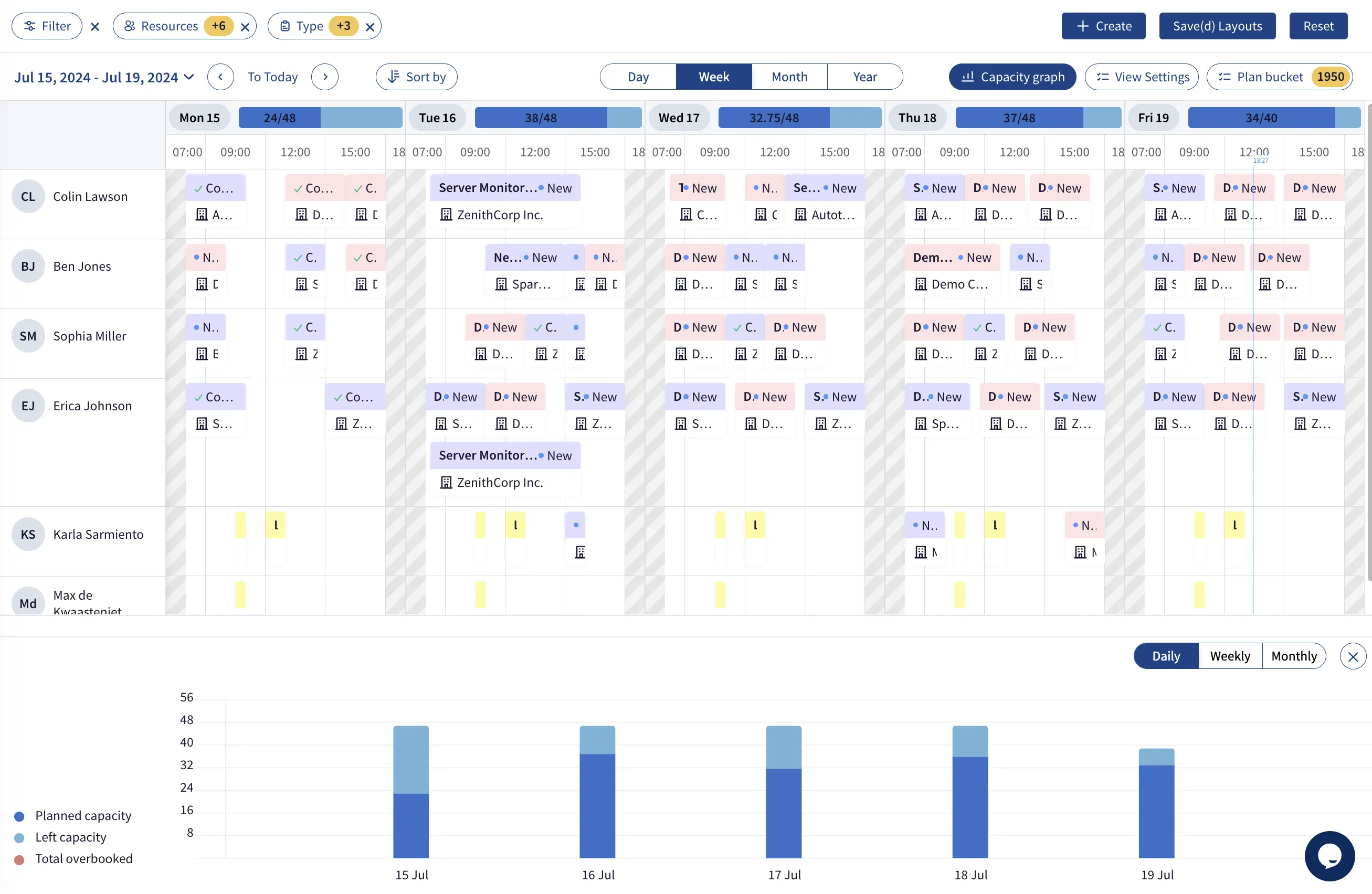
The struggle of staying in control of the work to be done
Many MSPs struggle with resource management and availability. Who’s doing what at any given time? Who’s available with certain skills? Who’s handling the incoming tickets?
This leads to a second question: Are the planned tasks getting done?
You could plan service calls and schedule Outlook appointments but how do you then stay in control of whether the tasks are done with a calendar overview of your whole company?
How to solve this with Proxuma
That’s where Proxuma comes in. In this article, we’ll explain exactly how to set up Proxuma and Autotask to make sure you stay in control of planned work.
In Proxuma's Planning screen, if you have your regular week view open, you can see all the service call statuses in one glance.
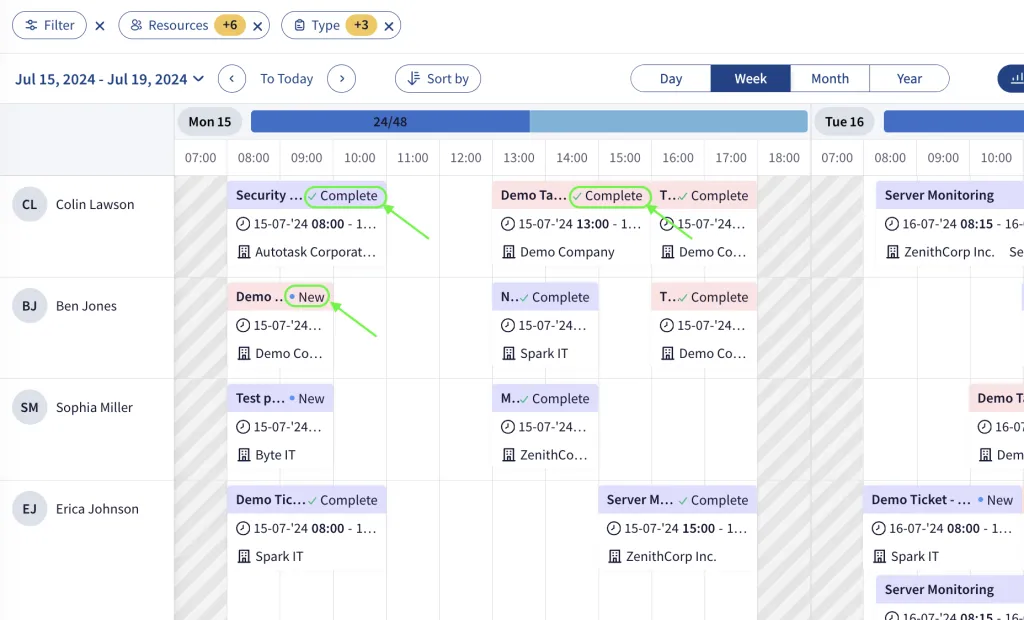
In this article, we'll explain how to setup your Autotask, Proxuma and you business processes in such a way that you, too can see at a glance what work is and isn't done on time.
Firstly, you need to make sure that your organization updates the service call status all the time. You don't need many service call status options, just "new" and "complete" will do. In some instances, a third status might be needed like "in progress" or "reschedule" but this is optional.
Automatically completing a service call
If you don’t want to burden your engineers with the updating of yet another entity, you can automatically mark a service call completed when the last ticket on that service call is completed. Here’s how you do that:
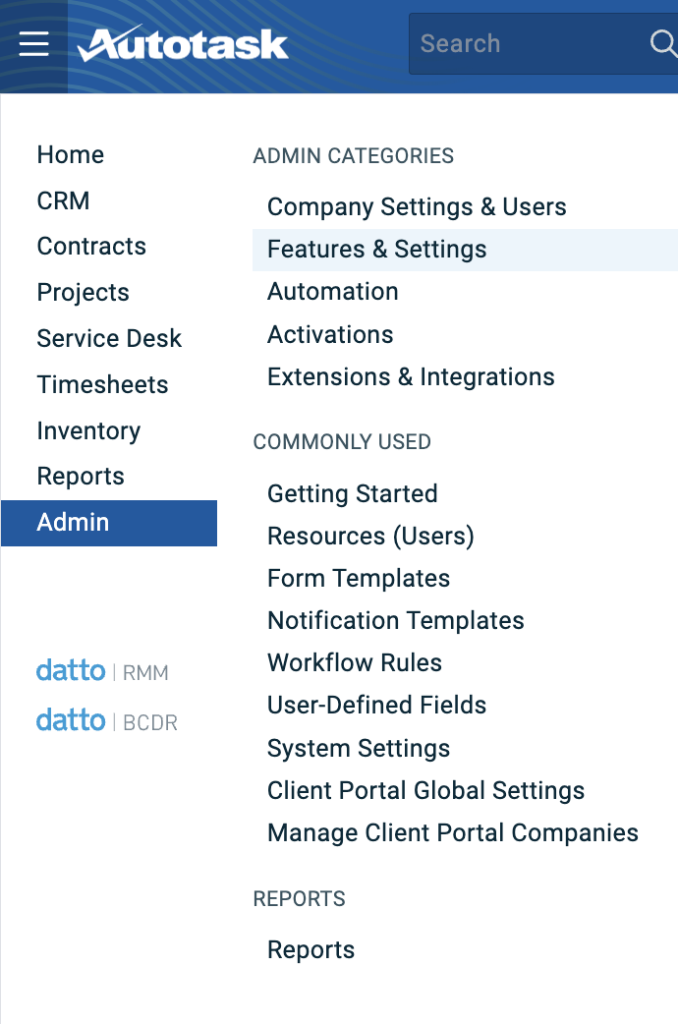
- In Autotask, go to Admin
- Go to features & settings
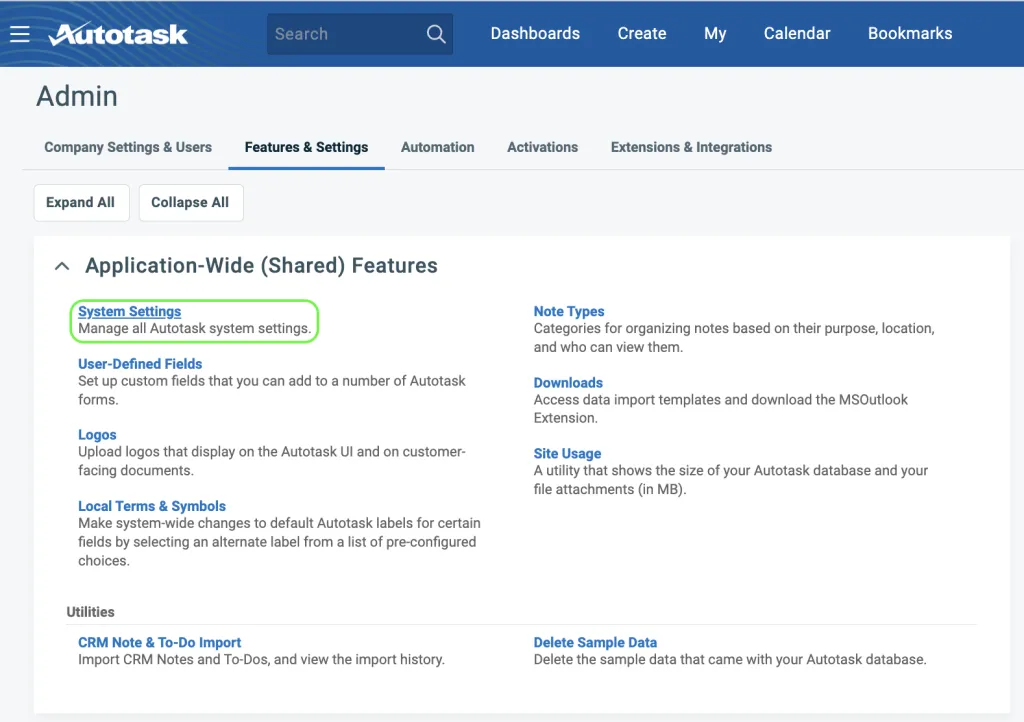
- Go to Application wide (Shared) Features
- Go to System Settings
- Go to Service Desk
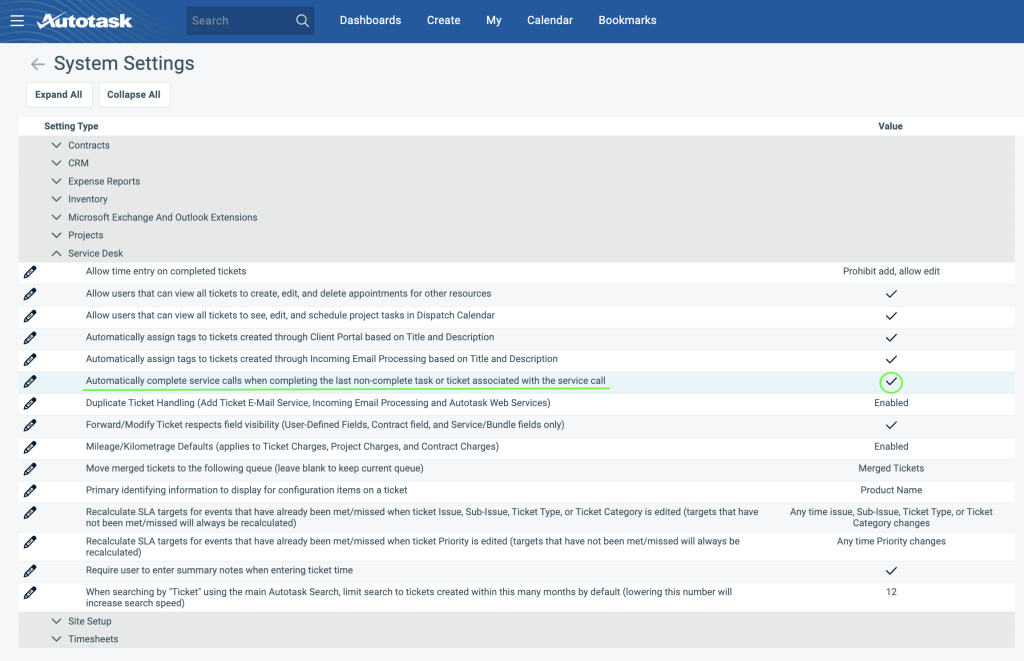
- Check the box "Automatically complete service calls when completing the last non-complete task or ticket associated with the service call"
- Done!
Setting Proxuma up the right way
Now that we know service calls are going to be completed when the work is done, it’s time to go to Proxuma.
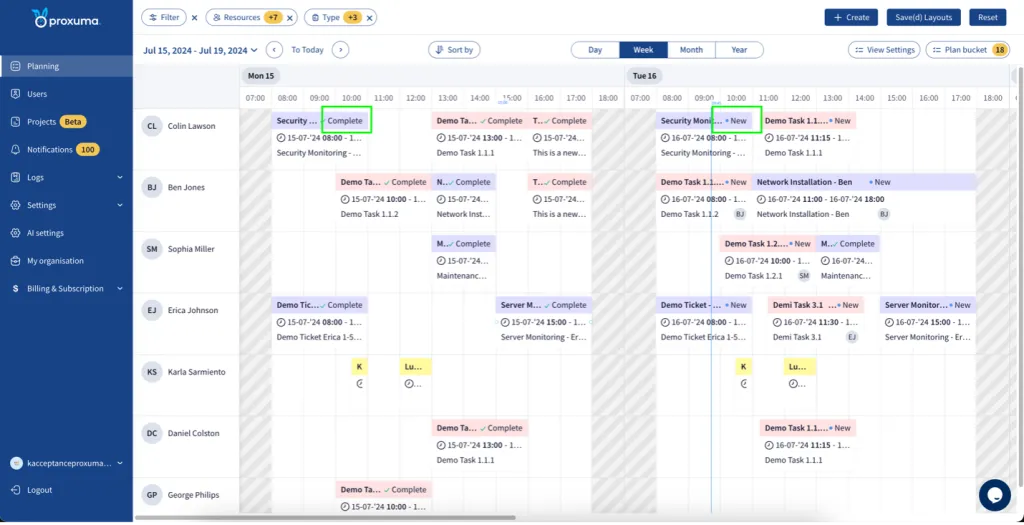
In the view filter section on the top left, make sure you are viewing the right resources. You can either select the resources individually, by team, skill, role, or line of business.
Next, make sure you don’t filter by service call or ticket status. Keep everything the team is doing visible.
Now notice the "complete" and "new" on the top left of each card. Those are service call statuses that indicate whether a planned item has been done or not.
This means that if we’re on, say, Tuesday the 9
th, all service calls on Monday the 8
th should have been completed. That is your definition of done for planned work.
What if the work isn't done
If something isn’t done, Proxuma allows you to quickly dig into the item.
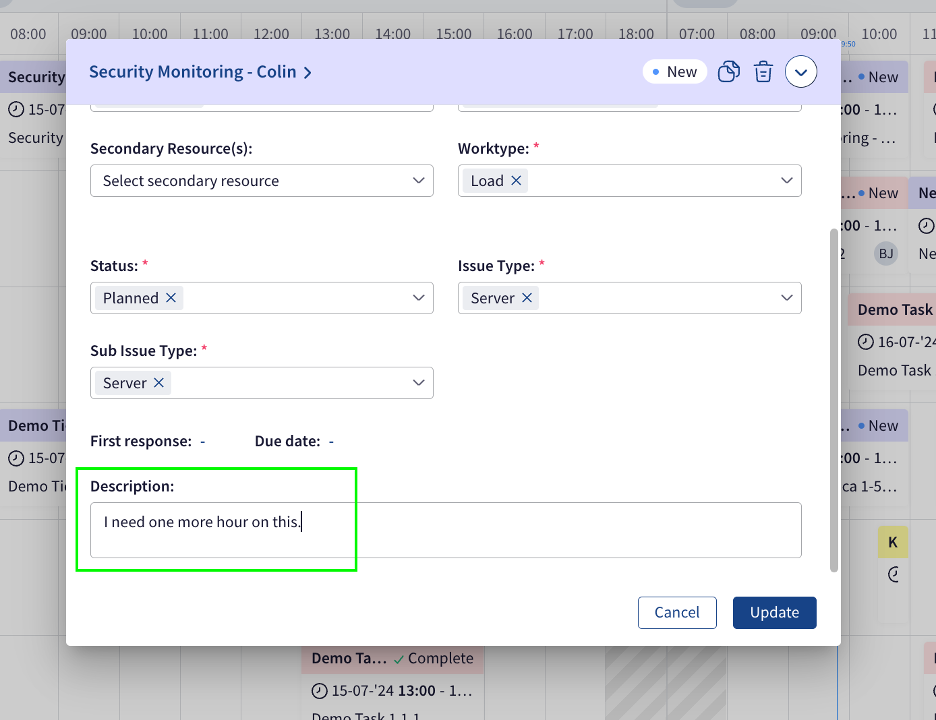
If an item isn’t done, there’s a good chance the engineer left a note or changed the description for you on the ticket or the service call. Either way, clicking on the card will present you with a popup window that contains those information.
Next we want to act on a not completed service call. There’s two ways to do this.
-
- You could simply drag the service call to the next available moment that engineer, or someone else with the right skillset (a field you can filter by) to pick it up. This way the same service call is moved with a simple drag & drop. The Outlook item is updated, as well as the service call in Autotask. Easy!
- The other method is to duplicate the service call. If you don’t want any gaps to be created from dragging the service call and thereby the outlook item into the future, because you want to see where that time went in the past, this is a good strategy.
You do this by first clicking the duplicate button:
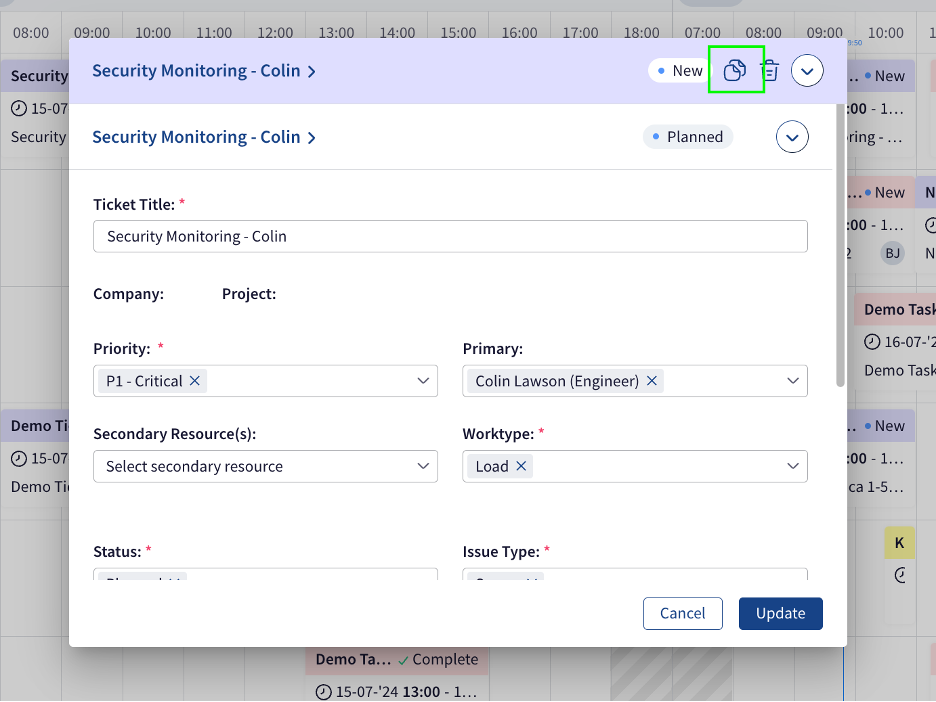
Next, you enter a new time for the service call by clicking on the time:
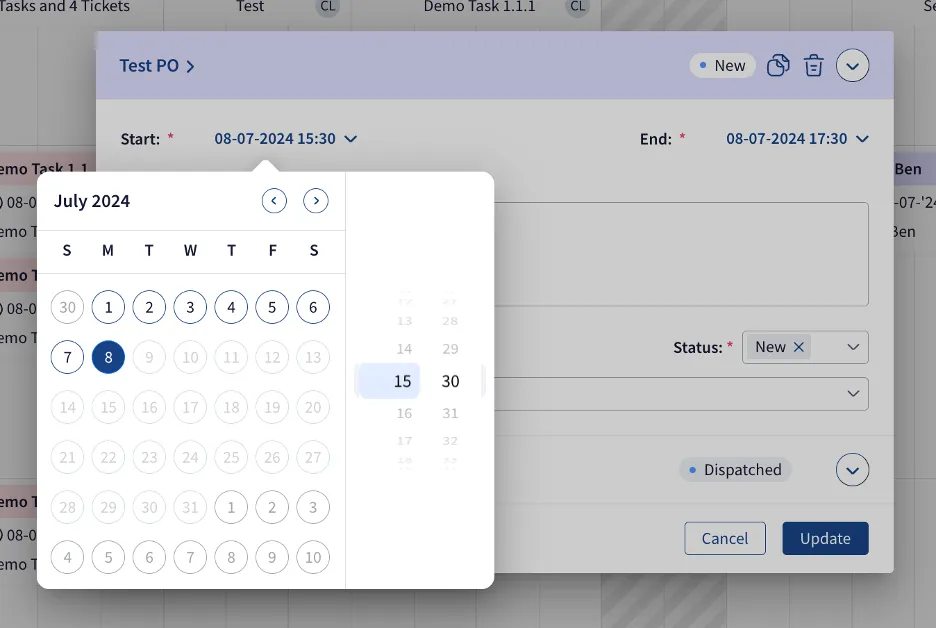
The ticket/task now has two service calls. You may even give the service call a new name to distinguish it from the old one.
With the Autotask setting mentioned before, both the old and the new service calls get the "complete" status once the ticket closes. This will then be immediately visible in Proxuma, meaning you’re in control
Quick tip: you could just hit the copy button and edit noting else. You’ll then see two service calls below one another. All you then do is drag the new service call to the right place. Easy!
When to copy and when to drag a service call
As a general rule, you can consider dragging a service call if the work hasn’t been done. If the work has been done, but the person needs more time (so the hours were put in, but more hours are needed) that merits a second service call.
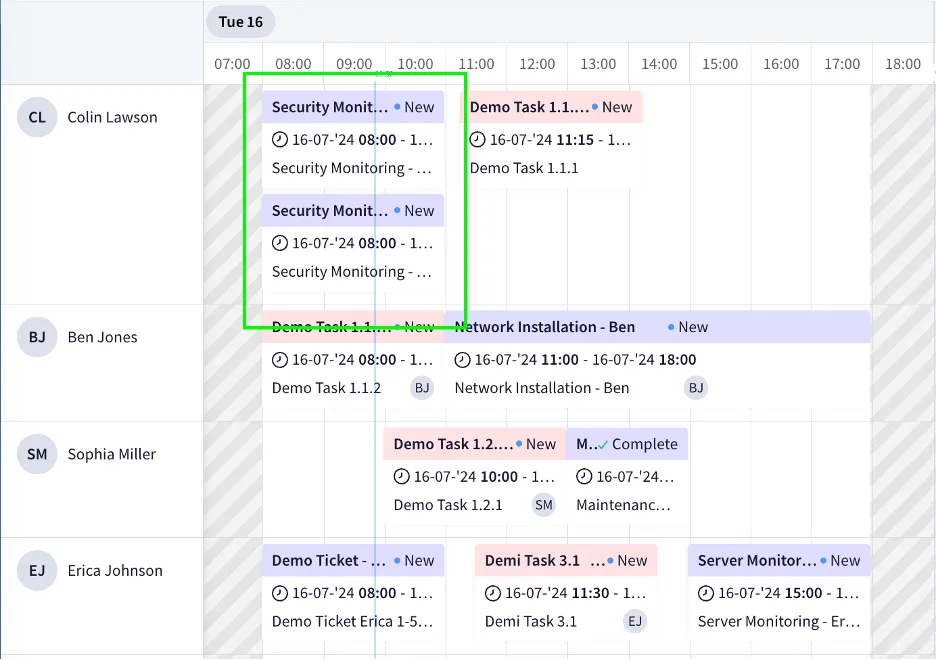
The result
The results of being in control of planned work are huge. It ensures none of your customers are ever left wondering when their ticket gets resolved. They know when it will be done, and by whom, down to a specific time, not just "within 48 hours". Of course you can never promise a resolution time, and the customer understands that. But they want to know when someone is going to take a look at their problem. You as the MSP can now ensure that your customers feel taken seriously and cared for, while you ensure all the work gets done on time.