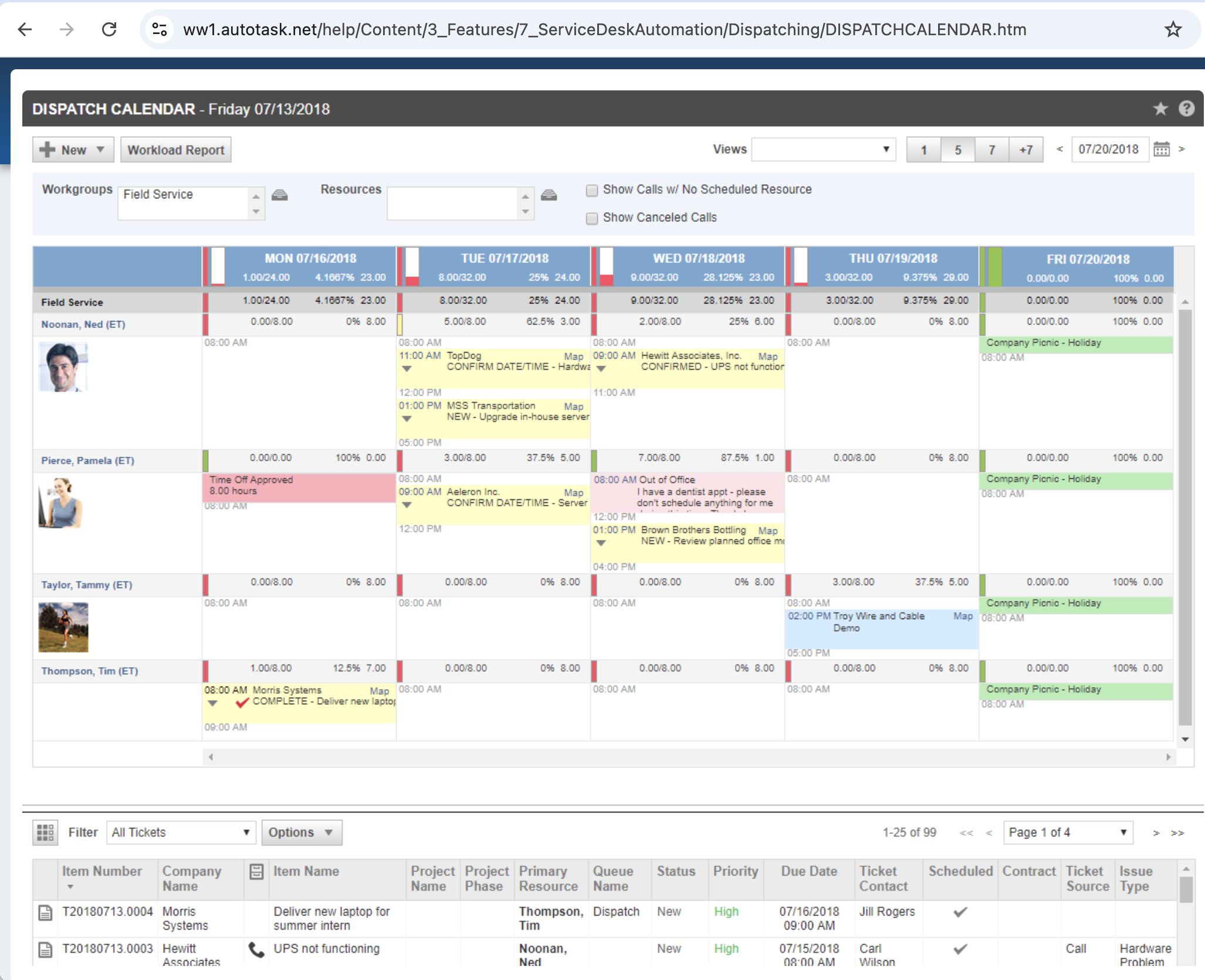
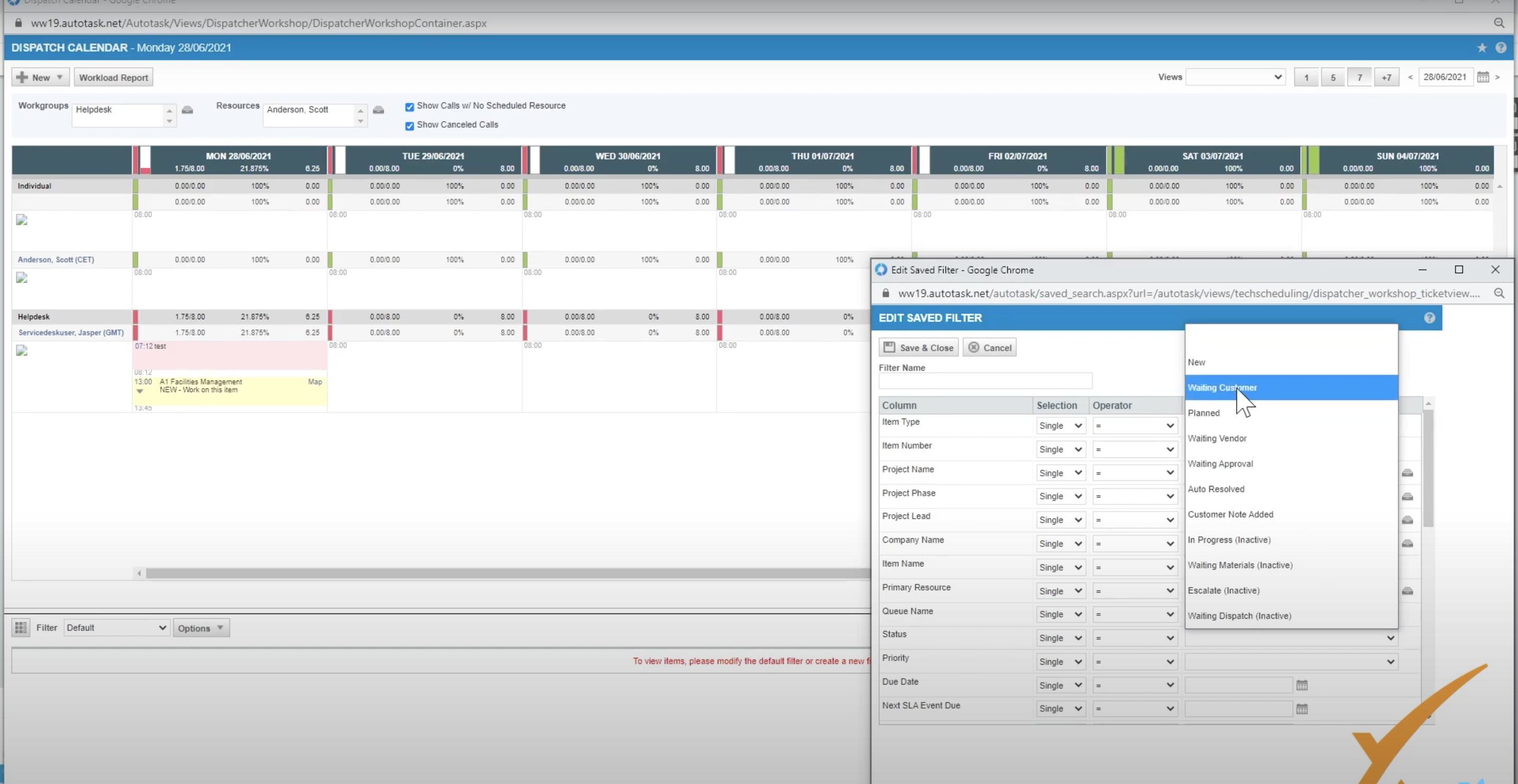
The Autotask Dispatch Calendar is a critical solution for Managed Service Providers (MSPs) seeking to streamline their service call management. The tool lets dispatchers and technicians manage service-related appointments. Studies have shown this software improves the following:
Improved Resource Utilisation: By aligning tasks with available resources efficiently, these calendars can boost resource usage by up to 20-30%.
Time Savings: Teams spend less time organising and prioritising tasks. According to some reports, businesses experience up to a 50% reduction in administrative scheduling time.
Faster Turnaround Times: With tasks automatically assigned and sequenced optimally, there’s less lag between task completion and new task allocation, potentially improving throughput by 10-20%.
How to navigate Autotask's dispatch calendar
1. Accessing the Calendar
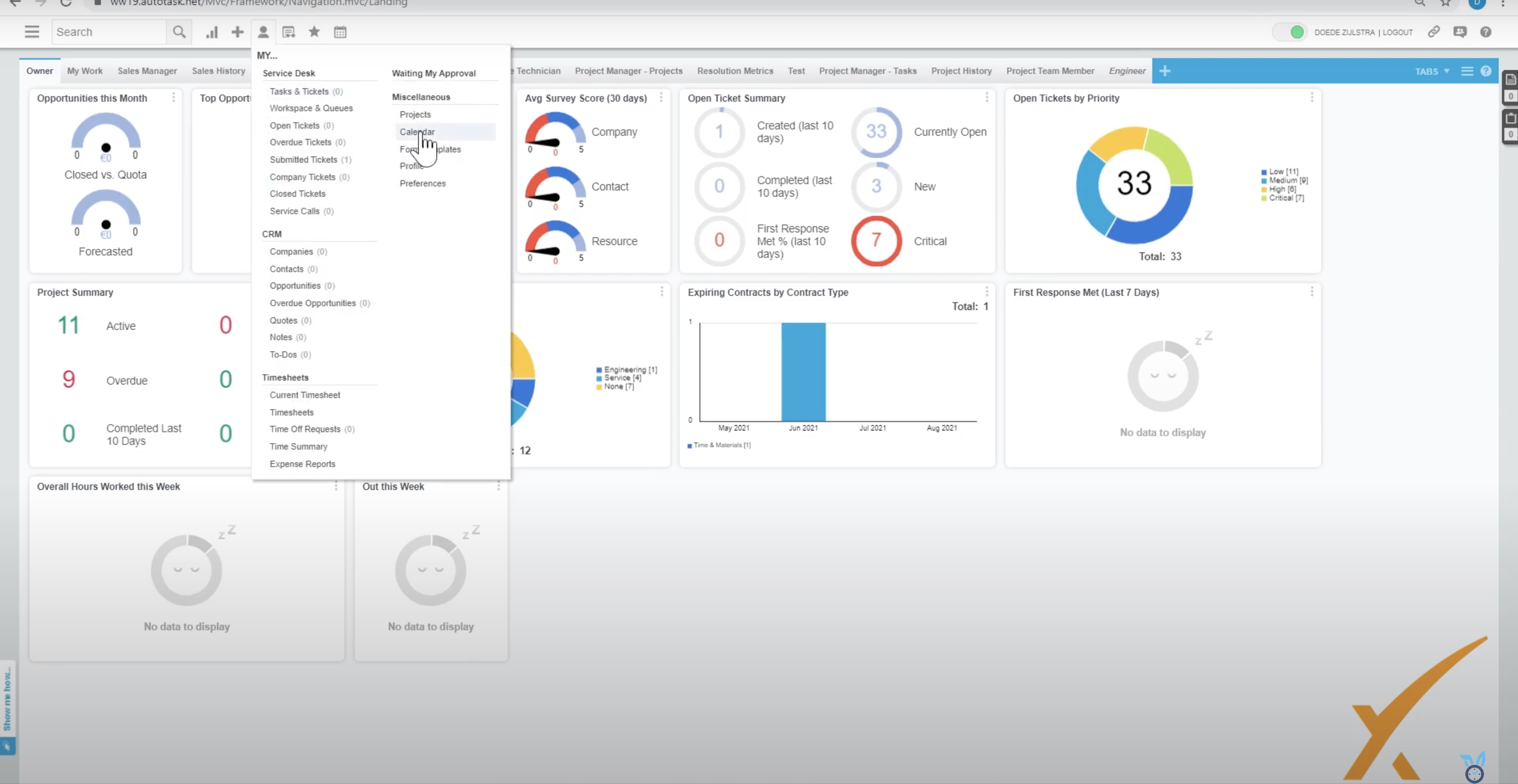
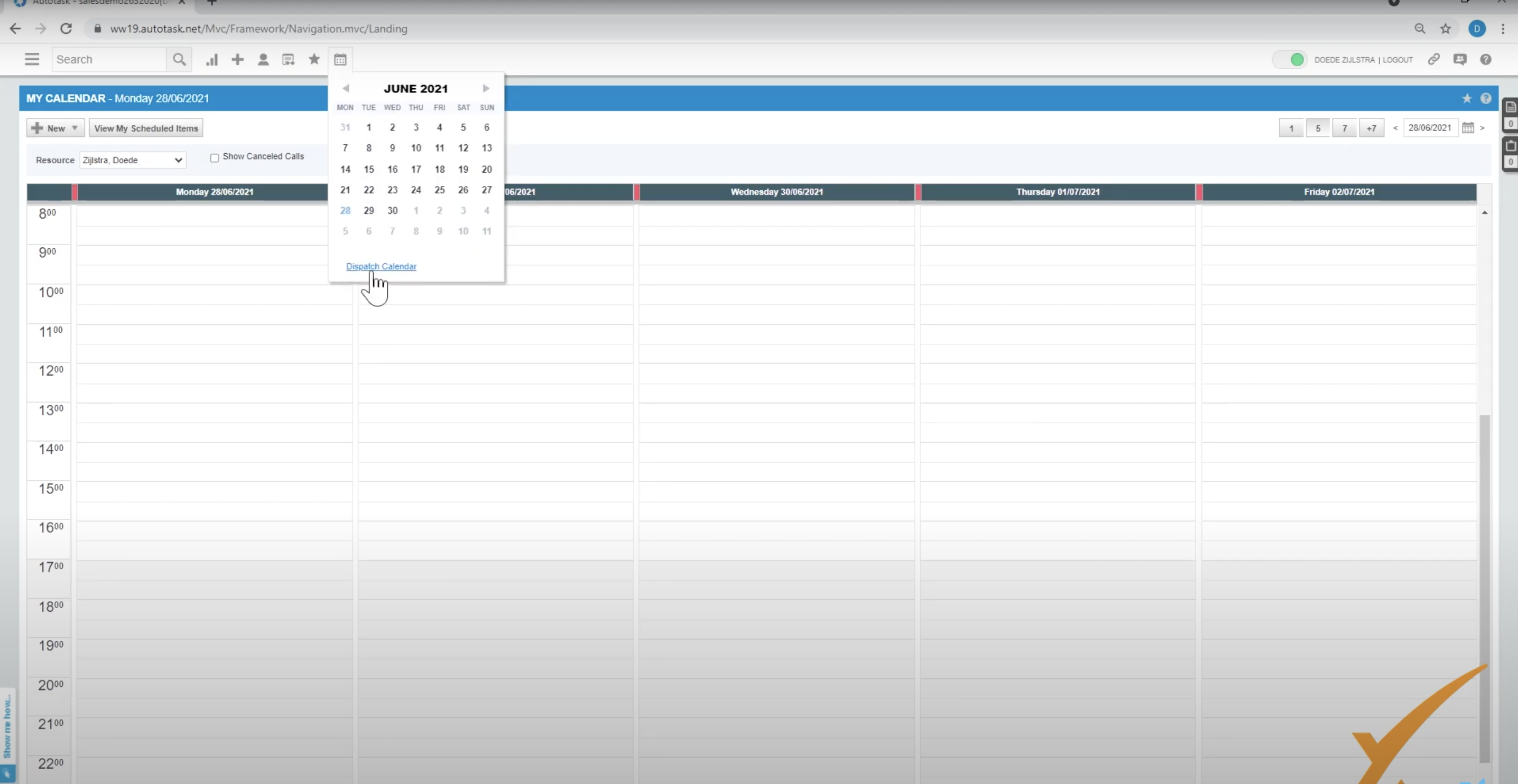
Within Autotask, locate the 'Calendar' option under the 'My..." tab to access your personal calendar view. Then access the Autotask 'Dispatch Calendar', by selecting it from the 'Calendar' tab. This will show your personalised overview.
Find your calendar under the 'Miscellaneous' headingThen select 'Dispatch Calendar' from the Calendar icon at the top2. Workgroups and Resources
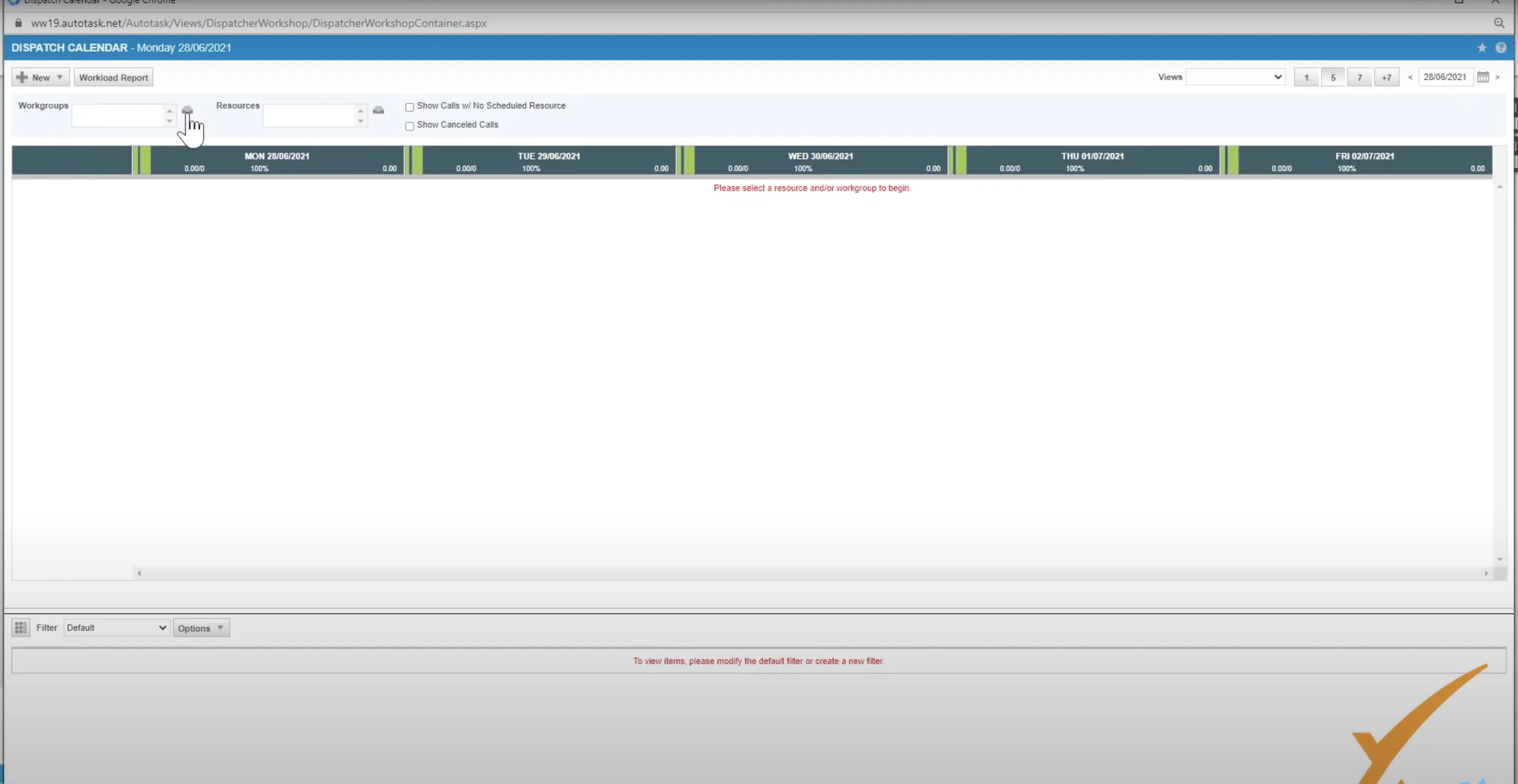
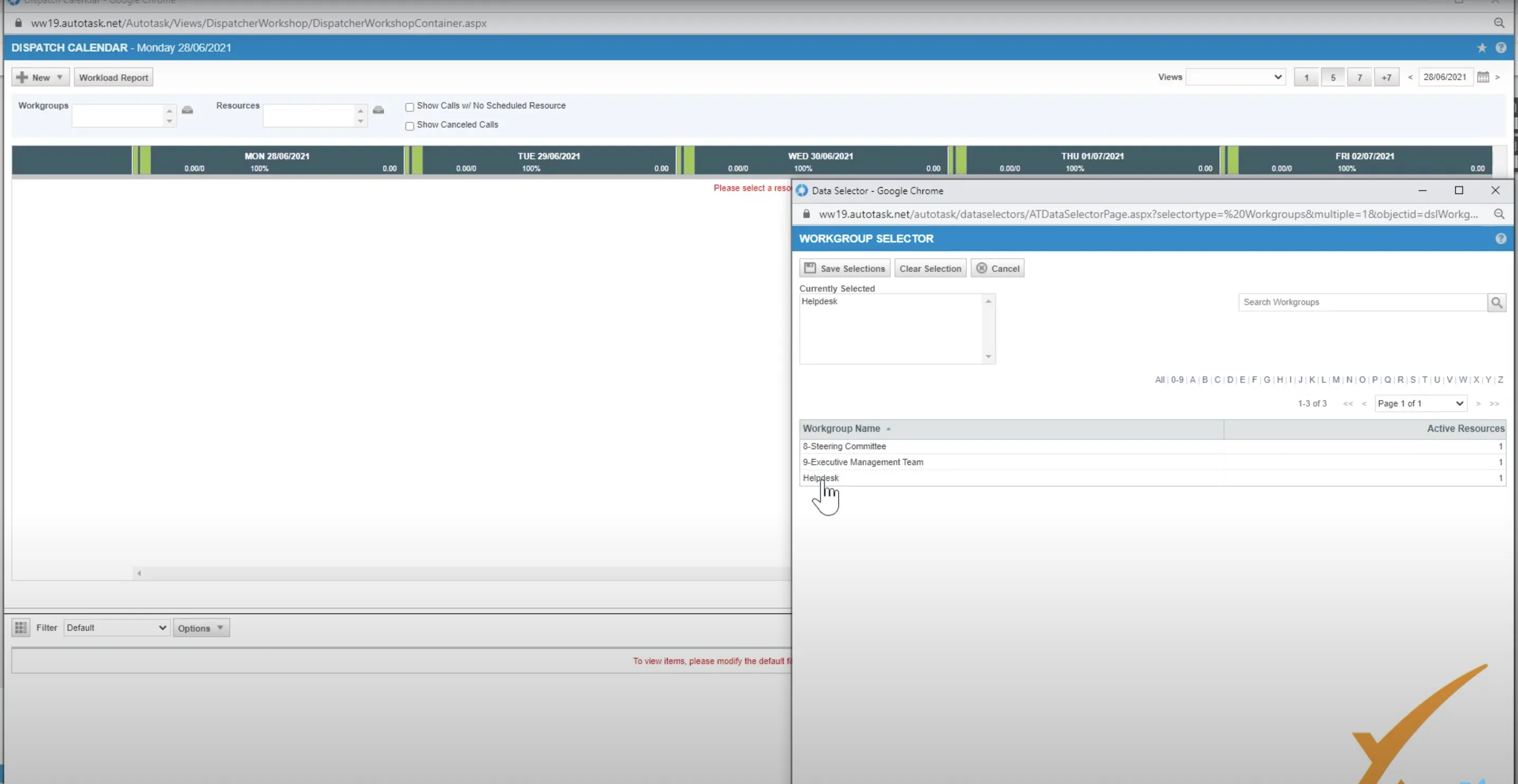
To alter your personalised view, you can configure your Autotask Dispatch Calendar to show selected workgroups and resources based on expertise or service areas. To do this, select the workgroups icon and choose the appropriate group from the available list, then select 'Save Selections' to view their scheduled appointments.
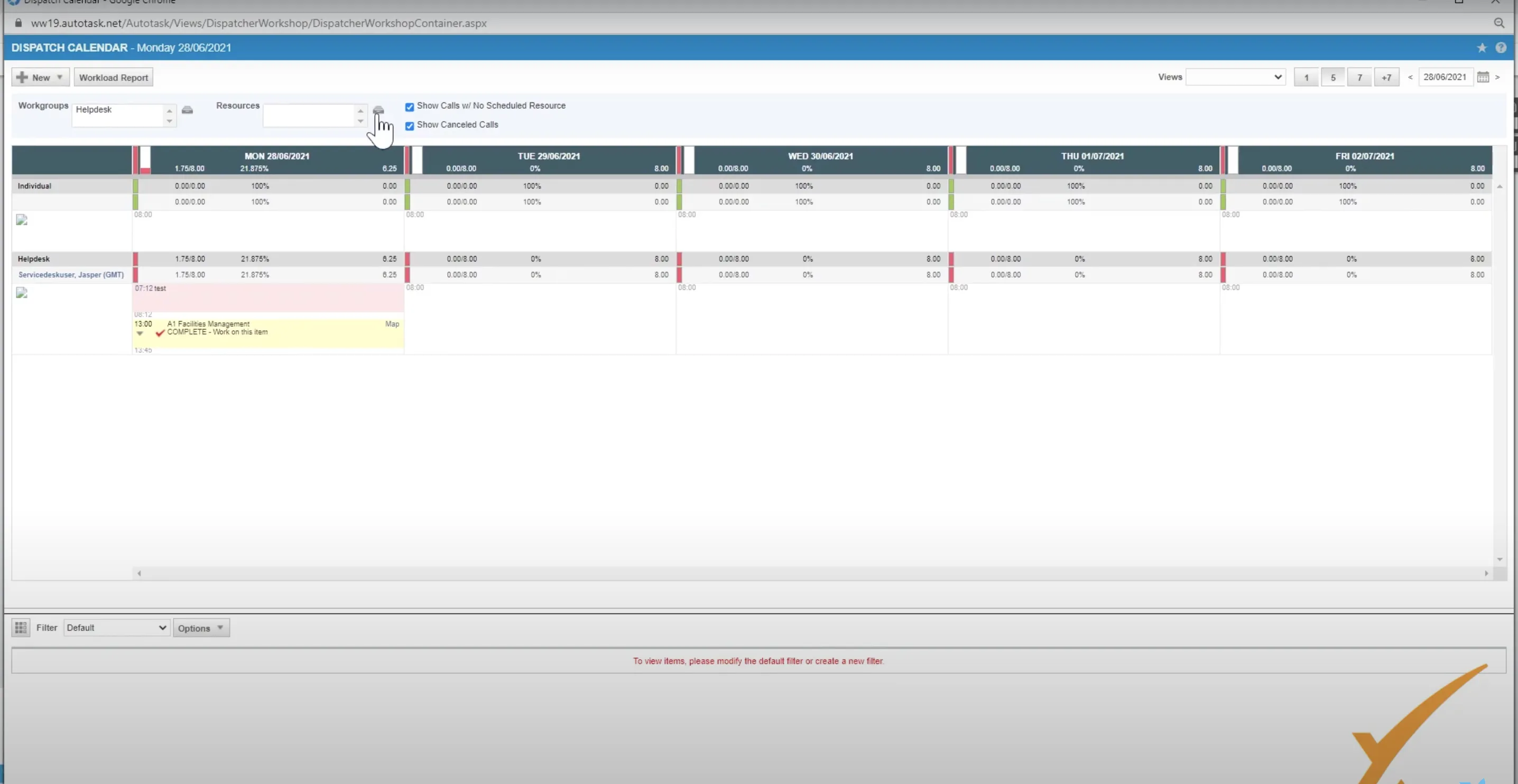
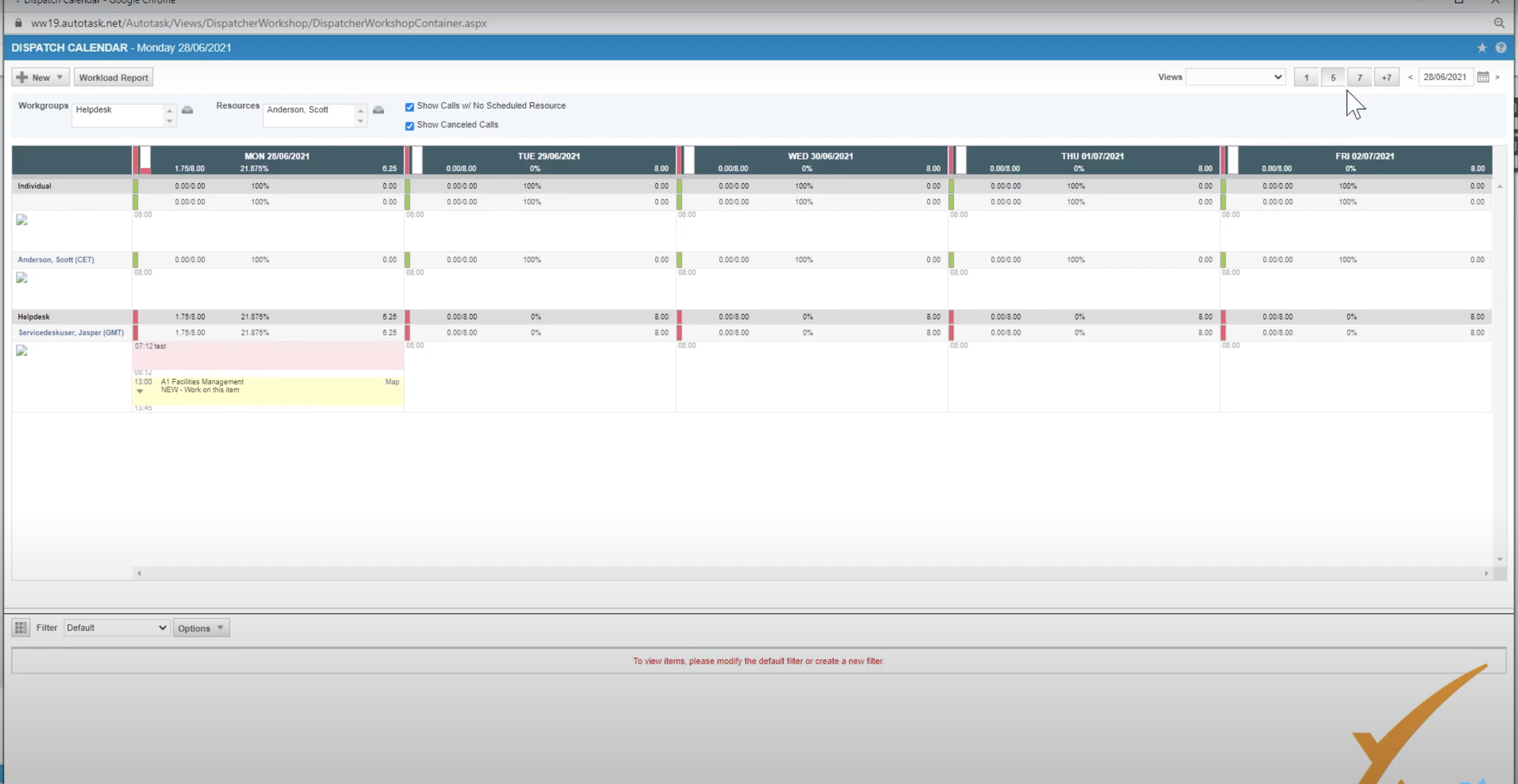
Navigating to the workgroups iconSelecting and saving the appropriate workgroupYou can also add individual resources to the calendar for a more granular view. To do this, repeat the process using the resources icon3. Visualising Service Calls
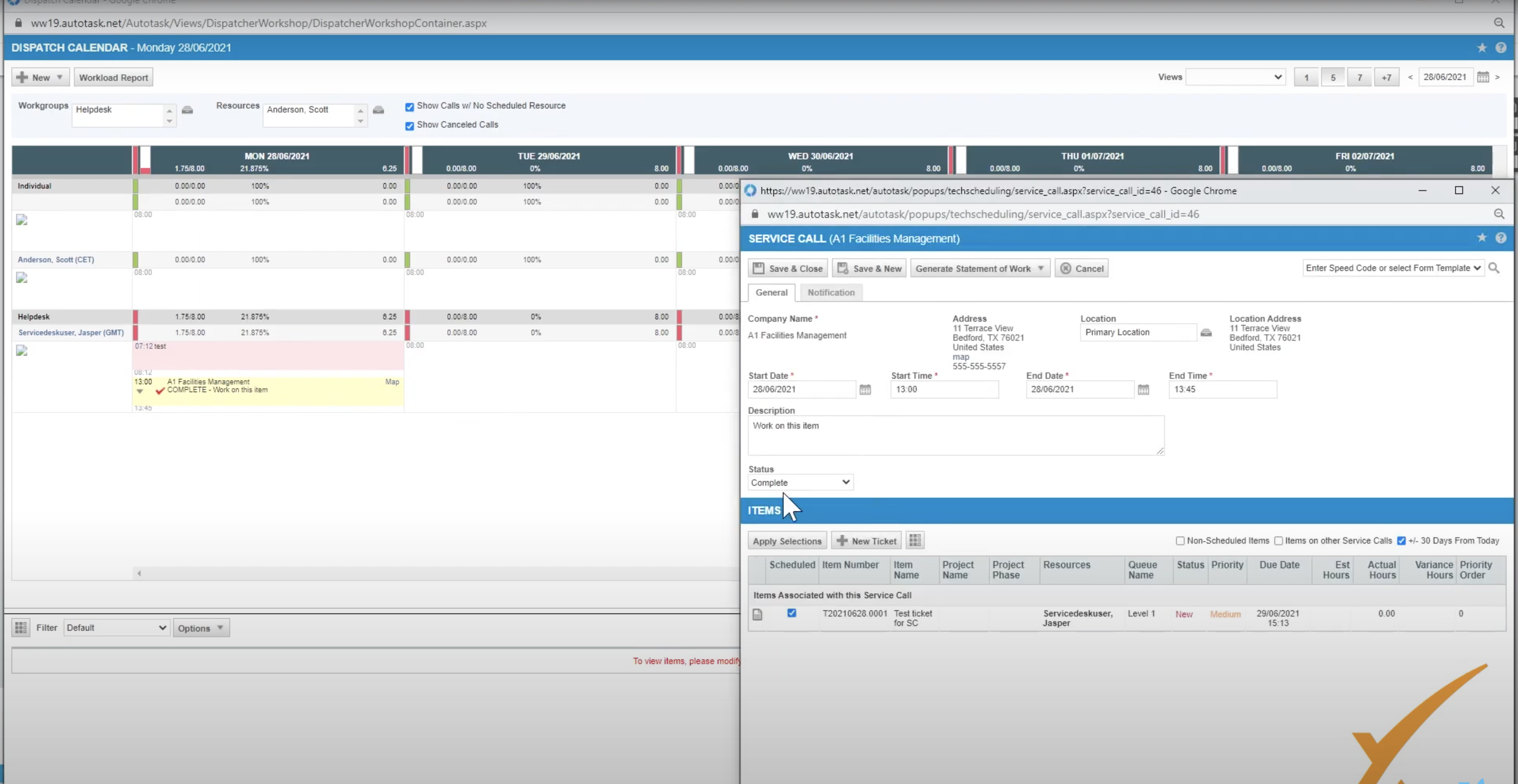
Service calls appear as colour-coded entries on the calendar, providing a visual representation of technician workloads. Hovering over an entry reveals detailed information about the client, service request, and scheduled time. You can also right click on the entry to add further details, complete the service ticket, or align the task to another resource by dragging and dropping.
Right click on an entry to add further details. These will help with filtering tasks later
How to customise your dispatch schedule: views and filters
1. Creating and Saving Custom Views
Custom views allow you to personalise the Autotask Dispatch Calendar to suit your specific needs and preferences. Tailored settings for workgroups, resources, display options, and more can be saved for later use.
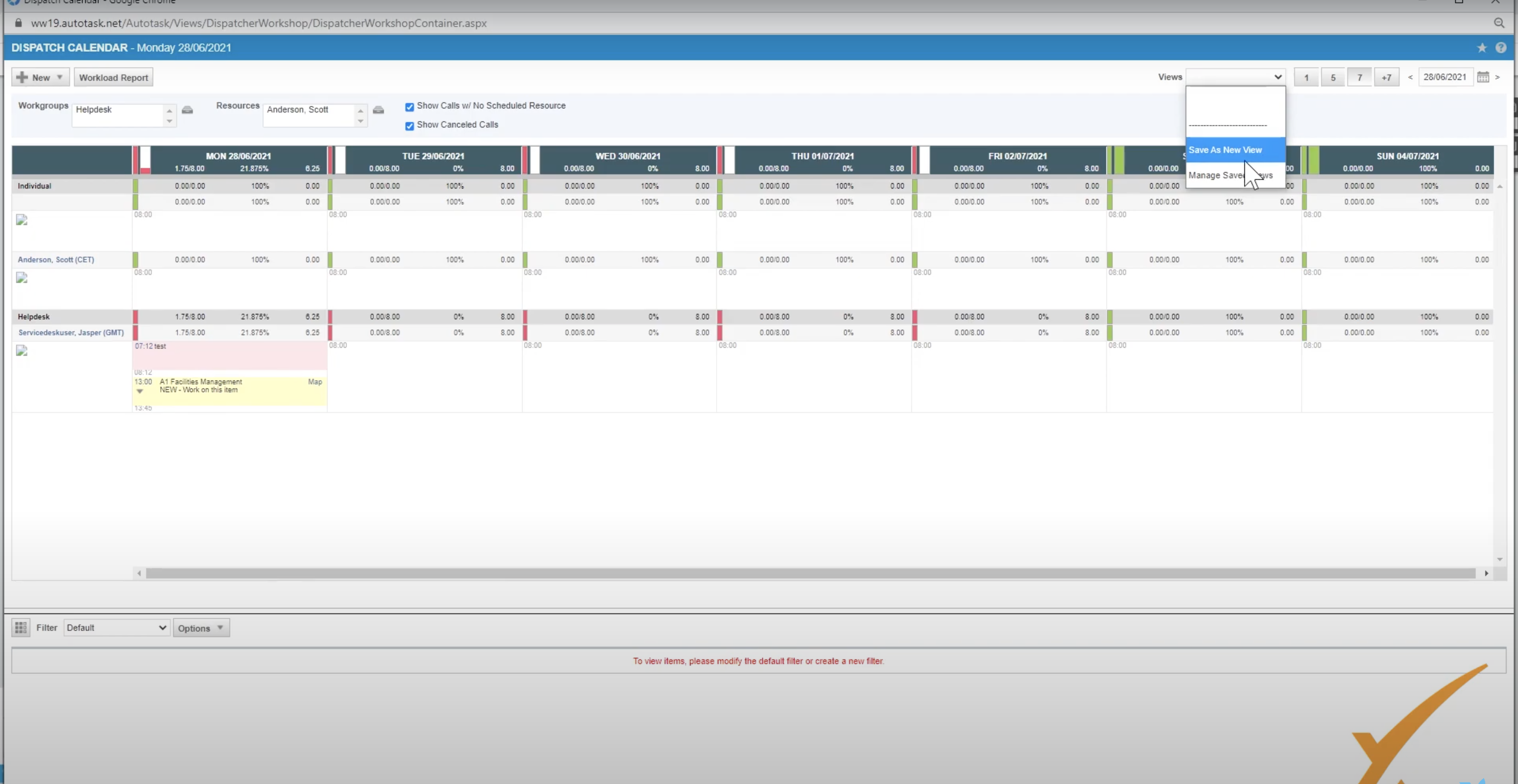
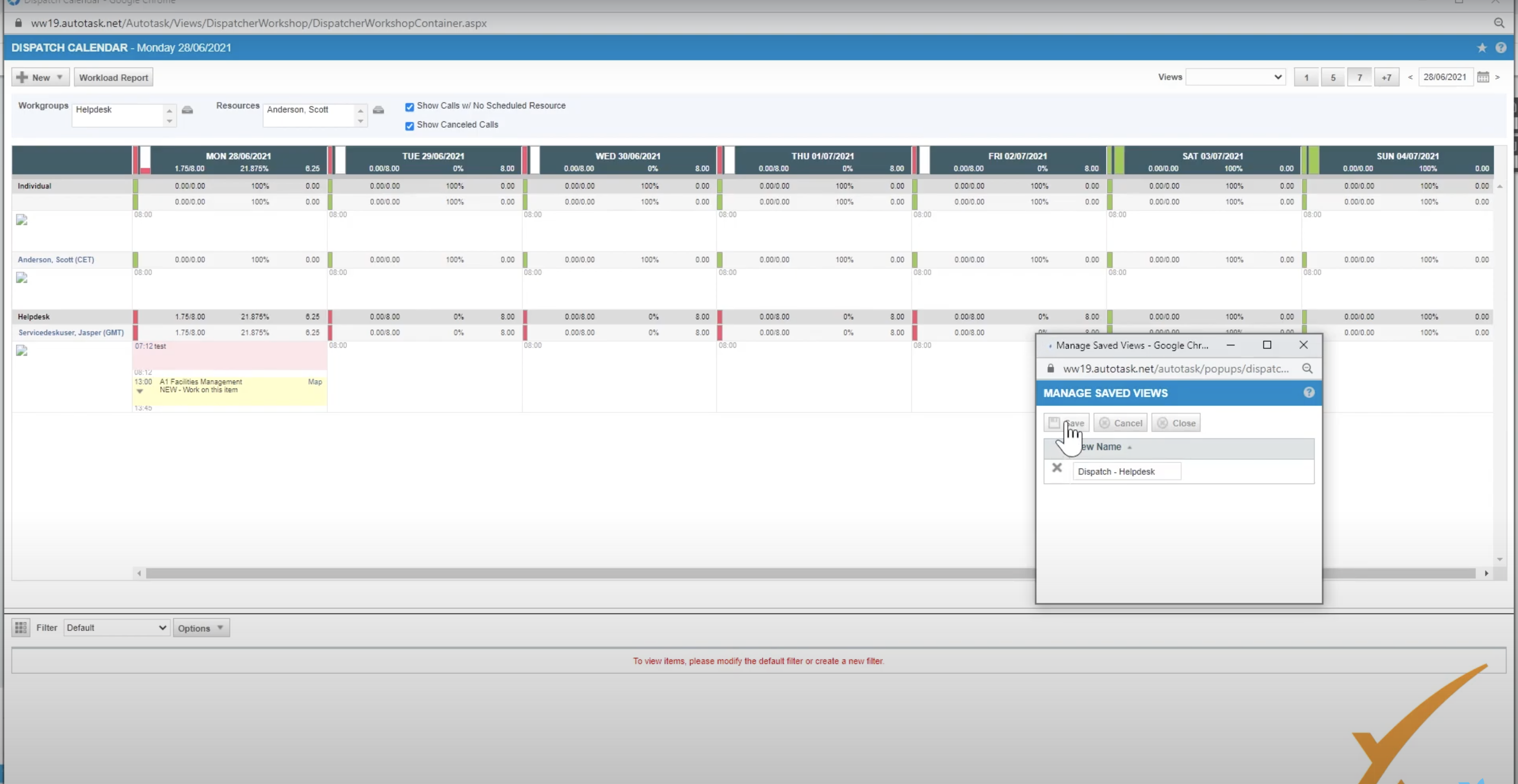
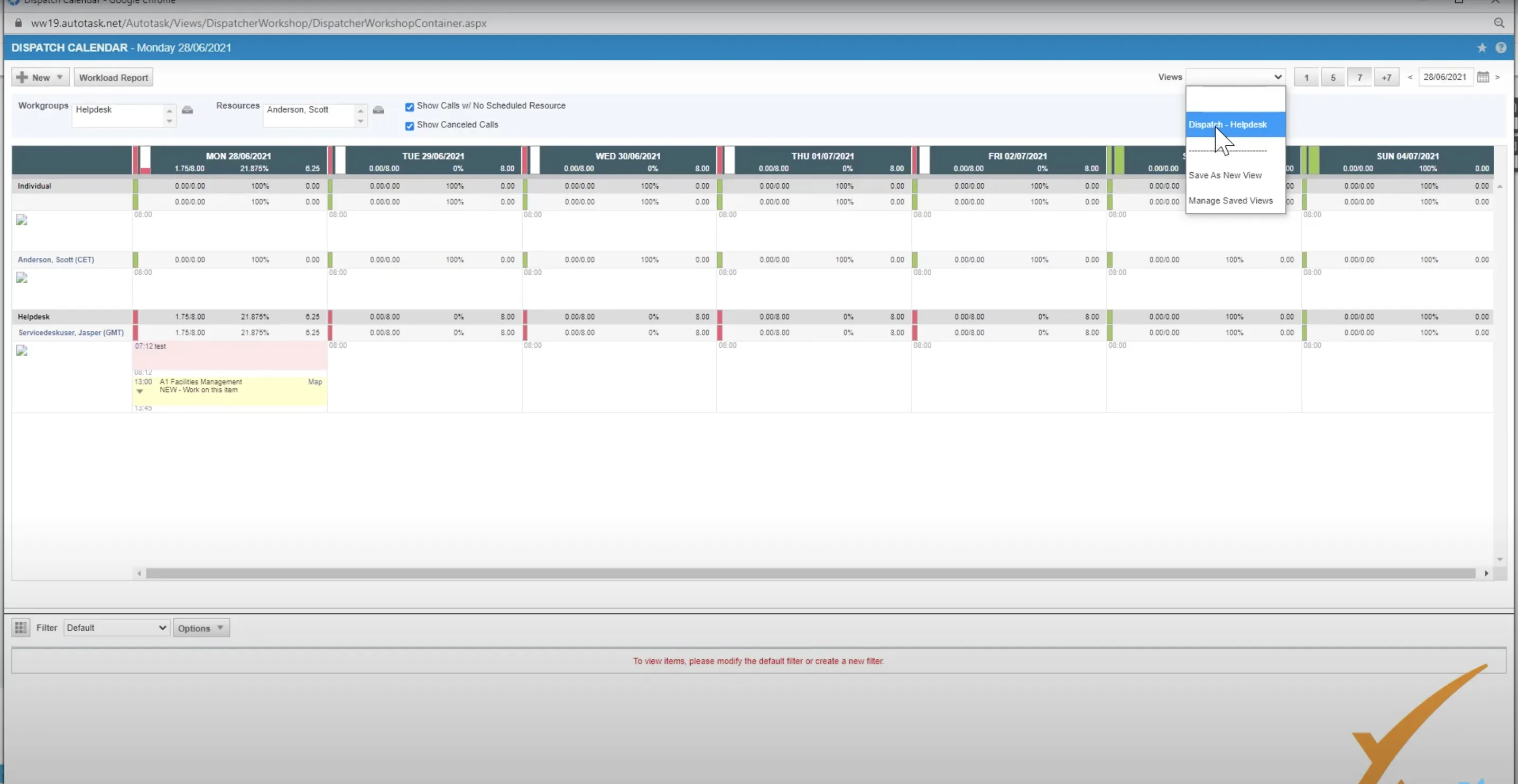
To do this, first create your preferred work group, as described before, and then select the amount of days per week you would like to view from the top righthand corner of the screen. Next, find the 'views' tab, rename and save the custom view. This will create a drop down option from the views tab to quickly navigate to.
Your calendar can be displayed over 1, 5, 7 days or a personalised breakdown between set datesSelect 'Save As New View' once your desired view is set to create a reusable, quick access, custom viewRename and save using the corresponding iconsYour customised Autotask Dispatch Calendar view is now available for future use2. Using Filters
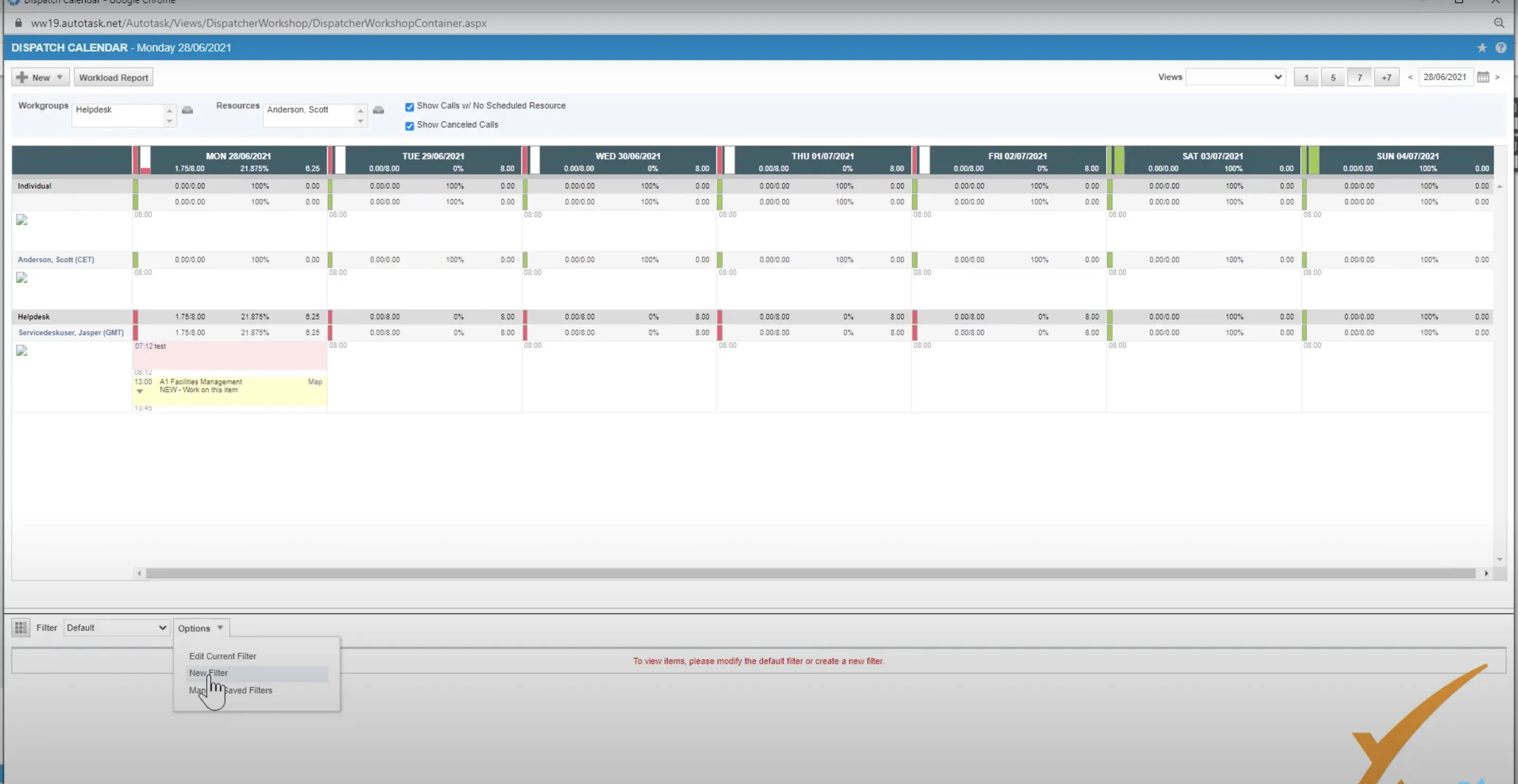
Filters offer another layer of customisation, allowing you to refine the displayed service calls based on specific criteria. Select 'New Filter' from the 'Options' menu at the bottom, to bring up a menu of filters that can be applied to your Autotask Dispatch Calendar.
To quickly screen your tasks, select 'New Filter'A number of filters are available for selection
Best Practices for Technician Scheduling and Dispatching
These habits make the native calendar workable. If dispatching is a daily bottleneck rather than an occasional task, Autotask dispatch and resource scheduling in Proxuma gives you a capacity-aware board that writes every change straight back to Autotask.
Splitting Resources into Groups: When dealing with large teams, it's best to divide resources into smaller groups on the dispatch calendar for better manageability. Ideally, aim for groups of 5-6 resources to ensure a clear and organised view.
Refreshing the Calendar: Regularly refreshing the calendar (using F5) is crucial, especially in busy environments with frequent updates. This ensures you're viewing the most up-to-date information and avoids scheduling conflicts.
MovingService Calls: The drag-and-drop functionality of the Autotask Dispatch Calendar makes rescheduling and reassigning service calls a easy. Simply drag a service call to a different time slot or technician's schedule to make the change.
Completing Service Calls: Once a service call is finished, right clicking and marking it as complete is essential. This provides the dispatch calendar with a visual indication of completed tasks and helps maintain accurate records. In Autotask, completed service calls marked with a green checkmark.
What is the Autotask Dispatch Calendar?
The Autotask Dispatch Calendar is a scheduling tool designed for Managed Service Providers (MSPs) to streamline service call management, optimise technician allocation, and improve calendar efficiency.
How do I access the Autotask Dispatch Calendar?
To access the Autotask Dispatch Calendar, log into your Autotask account, navigate to the calendar section, and select the dispatch calendar from the menu for an overview of appointments.
How does Proxuma integrate with the Autotask Dispatch Calendar?
Proxuma enhances the Autotask Dispatch Calendar with advanced features like drag-and-drop scheduling, real-time updates, capacity planning graphs, and seamless Outlook appointment synchronisation.
How do I assign or move service calls in the Autotask Dispatch Calendar?
You can assign service calls by dragging them to a technician’s schedule. To move service calls, use the drag-and-drop functionality to adjust the time or reassign to another technician.
What is capacity planning, and how does Proxuma improve it?
Capacity planning ensures that technician resources are used effectively. Proxuma enhances this by offering a graphical view of availability, helping MSPs avoid scheduling conflicts and optimise workload distribution.
How does the Autotask Dispatch Calendar integrate with Outlook?
The Autotask Dispatch Calendar, when used with Proxuma, automatically syncs service call appointments with Outlook. Technicians and clients receive real-time updates for improved scheduling and communication.
What is a service call?
A service call is a request for assistance or maintenance, typically initiated by a customer, to address an issue or perform a specific service. It often involves scheduling a technician to visit the customer’s location or resolving the issue remotely.
What is service call management?
Service call management is the process of organising, scheduling, and tracking service appointments to ensure timely and efficient resolution of customer issues. It helps businesses streamline operations, allocate resources effectively, and improve customer satisfaction.
What are the key features of a service call management software?
Key features include appointment scheduling, real-time technician tracking, automated notifications, reporting tools, and integrations with calendars or CRM systems like Autotask.
Who uses service call management software?
Service call management systems are commonly used by Managed Service Providers (MSPs), field service companies, IT support teams, and any business that relies on scheduled service appointments.
Can service call management software integrate with other tools?
Yes, most service call management tools integrate with CRM systems, calendars, and project management platforms like Autotask. Advanced integrations, like with Proxuma, enable streamlined scheduling and real-time updates.
Can I track service call progress in real-time?
Yes, the Autotask Dispatch Calendar, combined with Proxuma, offers real-time updates on service call statuses, ensuring proactive communication and efficient task management.
What is a Calendar Management Tool?
A calendar management tool is software that helps individuals and organisations schedule, organise, and manage appointments, tasks, and resources efficiently. Examples include Autotask Dispatch Calendar, Google Calendar, and Microsoft Outlook.
Where can I learn more about calendar management?
Our YouTube channel houses a Bootcamp course with tutorials and video demonstrations of our software. Practice using basic features like creating appointments, setting reminders, and managing shared calendars.