

Karla Sarmiento
Head of Customer Success @ Proxuma
This article is reviewed by: Jasper van Horssen
Written on: Modified:
Blogs
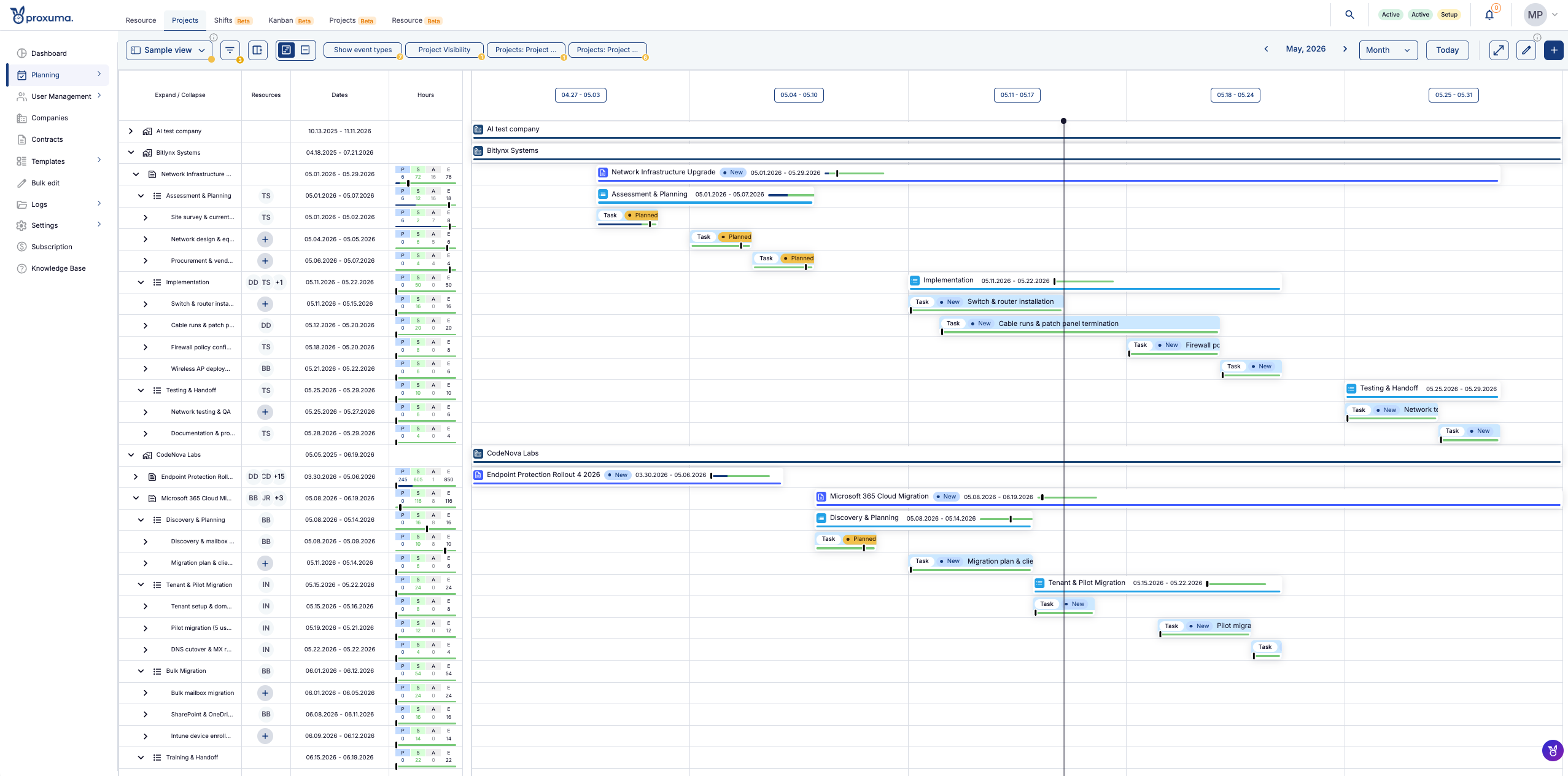
We have set up project management in Autotask for dozens of MSPs over the past five years. The module is straightforward once you know the right order of operations, but a few decisions early on determine whether your team will actually use it or abandon it after two weeks.
This guide covers everything we configure for new Autotask clients. Jump to what matters to you, or start from the top.
In this guide
One of the standout features of Autotask is its project templates, which allow you to create a standardized approach to recurring project types. Templates are a time-saver, enabling you to set up projects quickly without sacrificing detail or quality. They provide a predefined structure that ensures consistency, helping you establish reliable workflows across your team.
To get the most out of templates, take the time to review and optimize them regularly. Templates should reflect your business's evolving needs, incorporating updates to client requirements, new best practices, or changes in team capacity. A well-designed template includes clearly defined phases and task dependencies, so execution runs smoothly.
How to Create Autotask Project Templates:
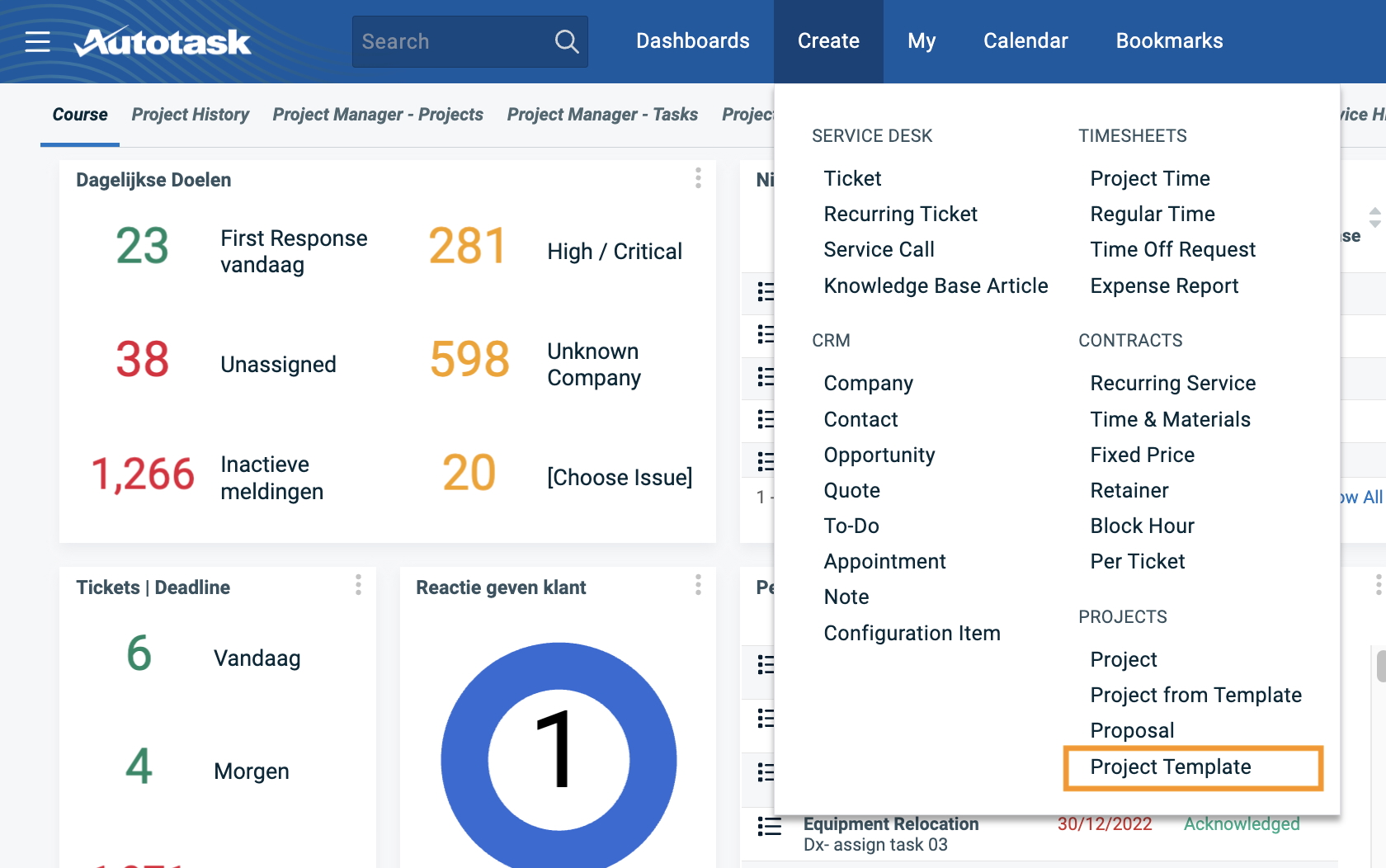
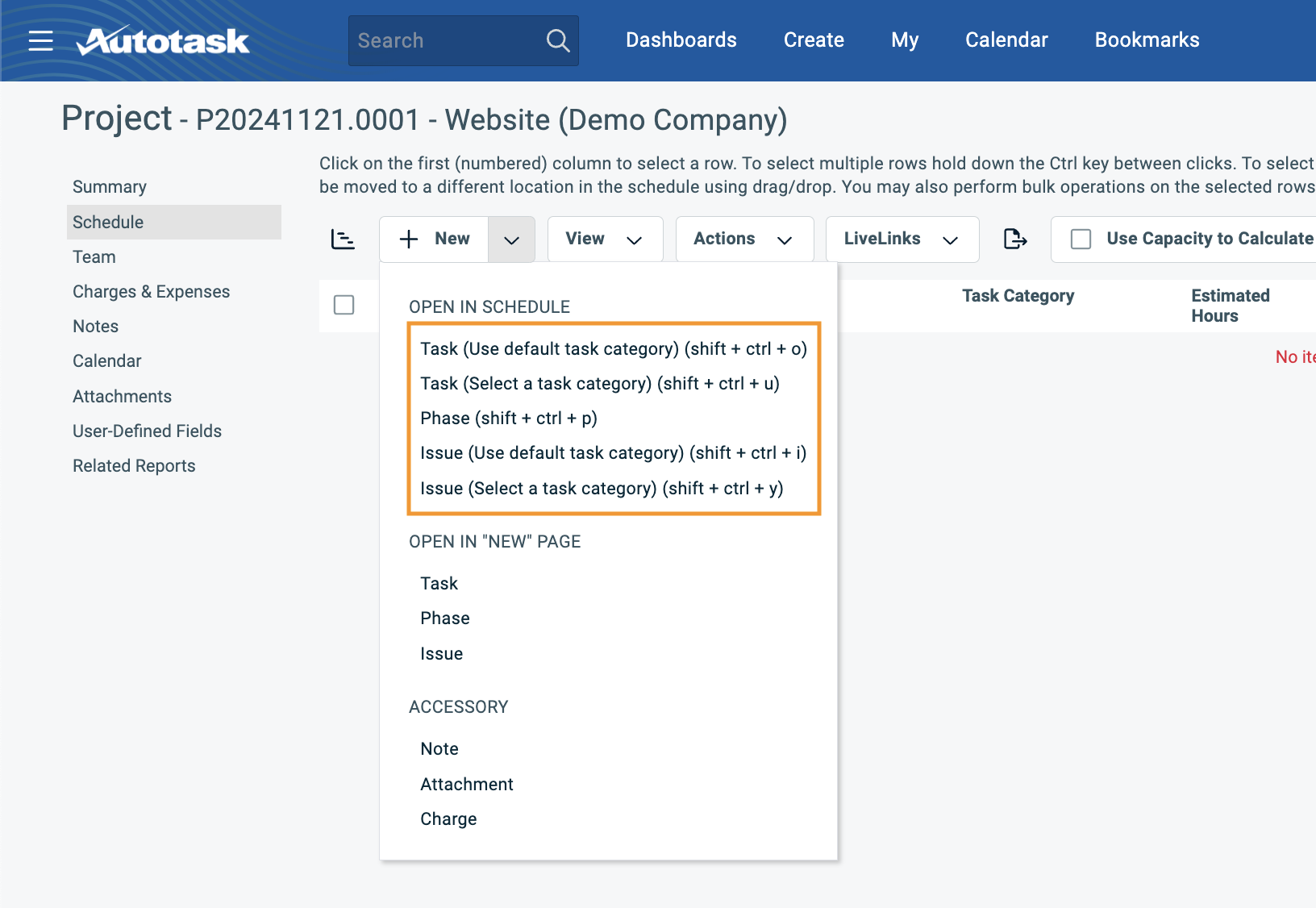
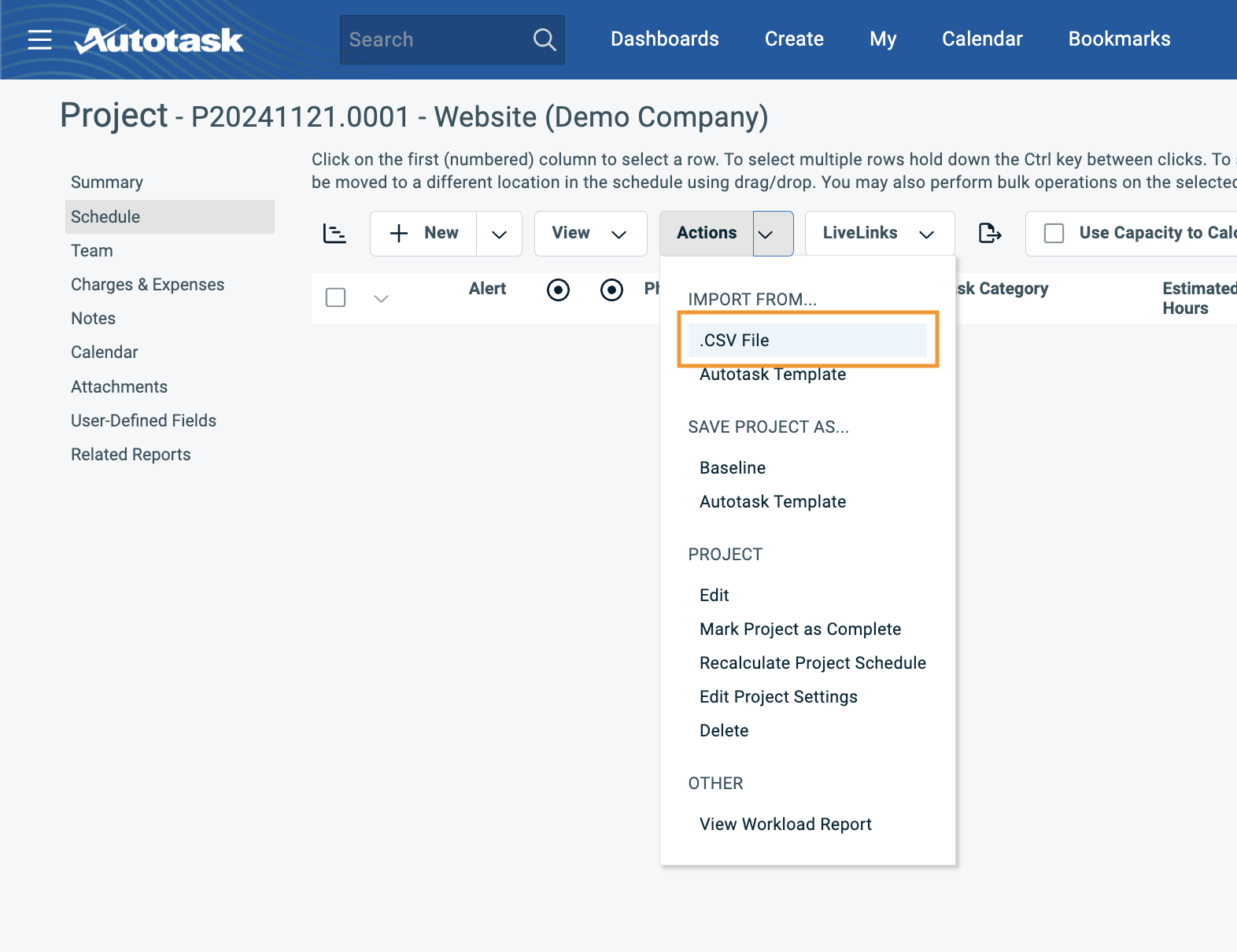
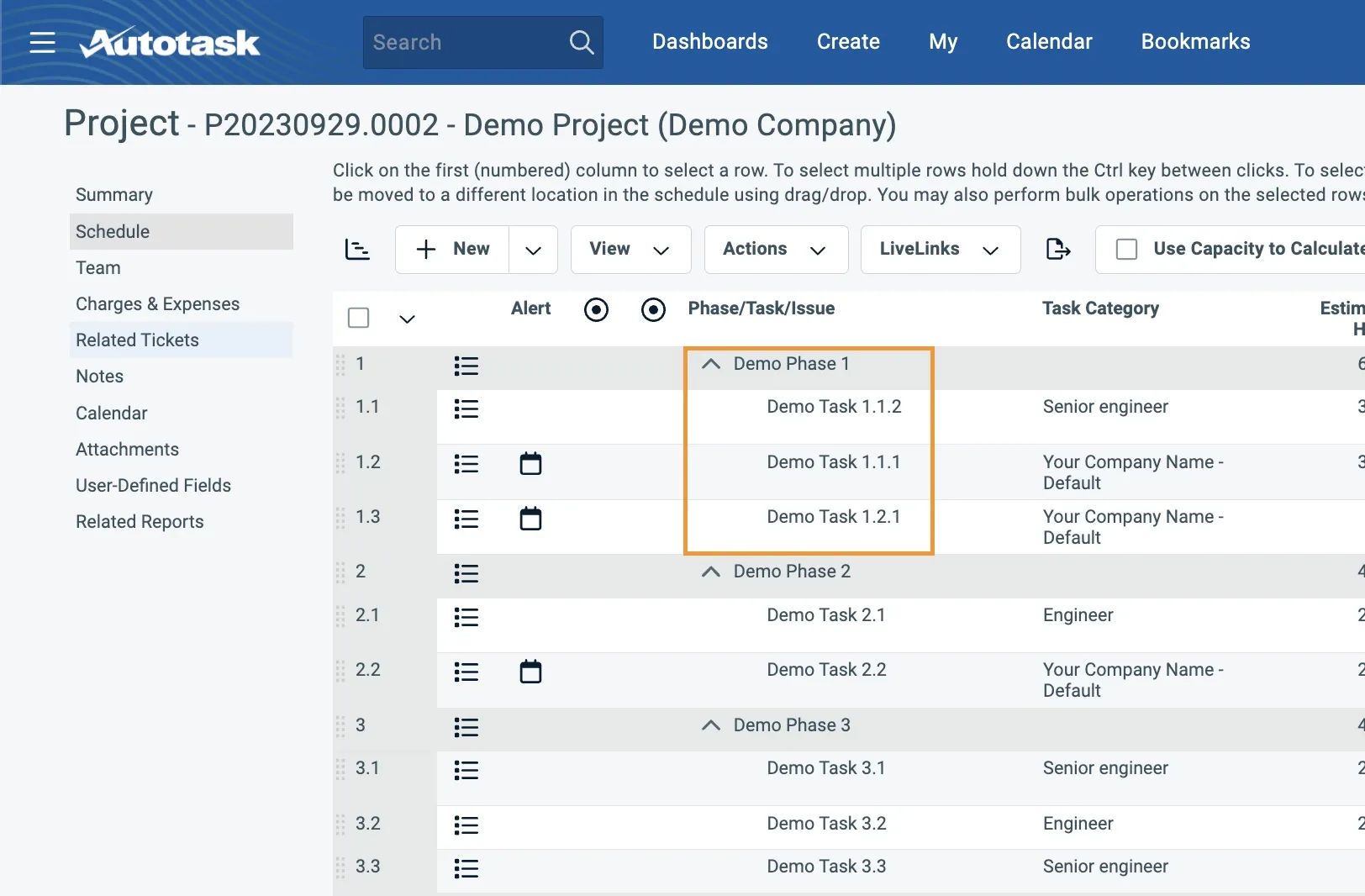
Different projects demand different levels of detail, and Autotask gives you the flexibility to manage both simple and complex workflows. For smaller projects, you might focus on tracking tasks, keeping things straightforward. However, for larger, more intricate projects, it is worth breaking the projects into phases, assigning tasks and carefully tracking resources on each phase and task.
Understanding the level of detail your team needs can prevent unnecessary administrative work while still providing enough clarity to keep everything on track. The goal is to ensure your project data is actionable and precise.
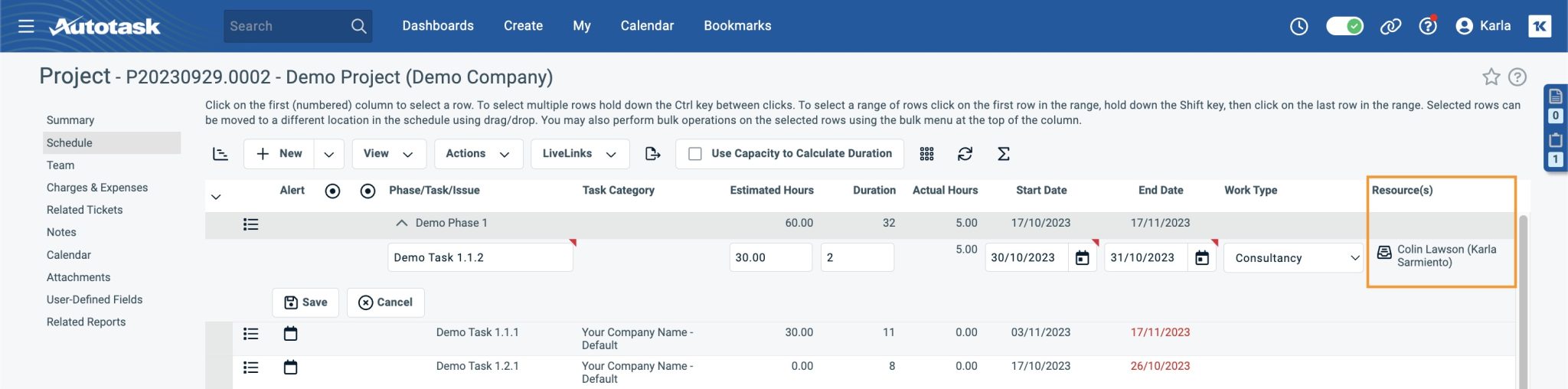
Assigning tasks to the right people is a critical component of effective project management. Autotask makes it easy to allocate resources based on team member skills and roles. This helps tasks get done efficiently and to a high standard.
Strategic resource allocation also means monitoring workloads to prevent burnout. Regularly reviewing resource utilization helps maintain a balanced team, keeping morale and productivity high.
How to Assign Resources:
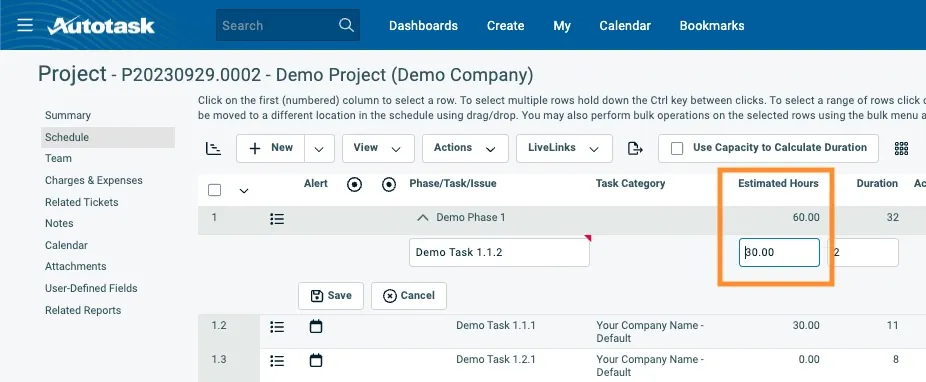
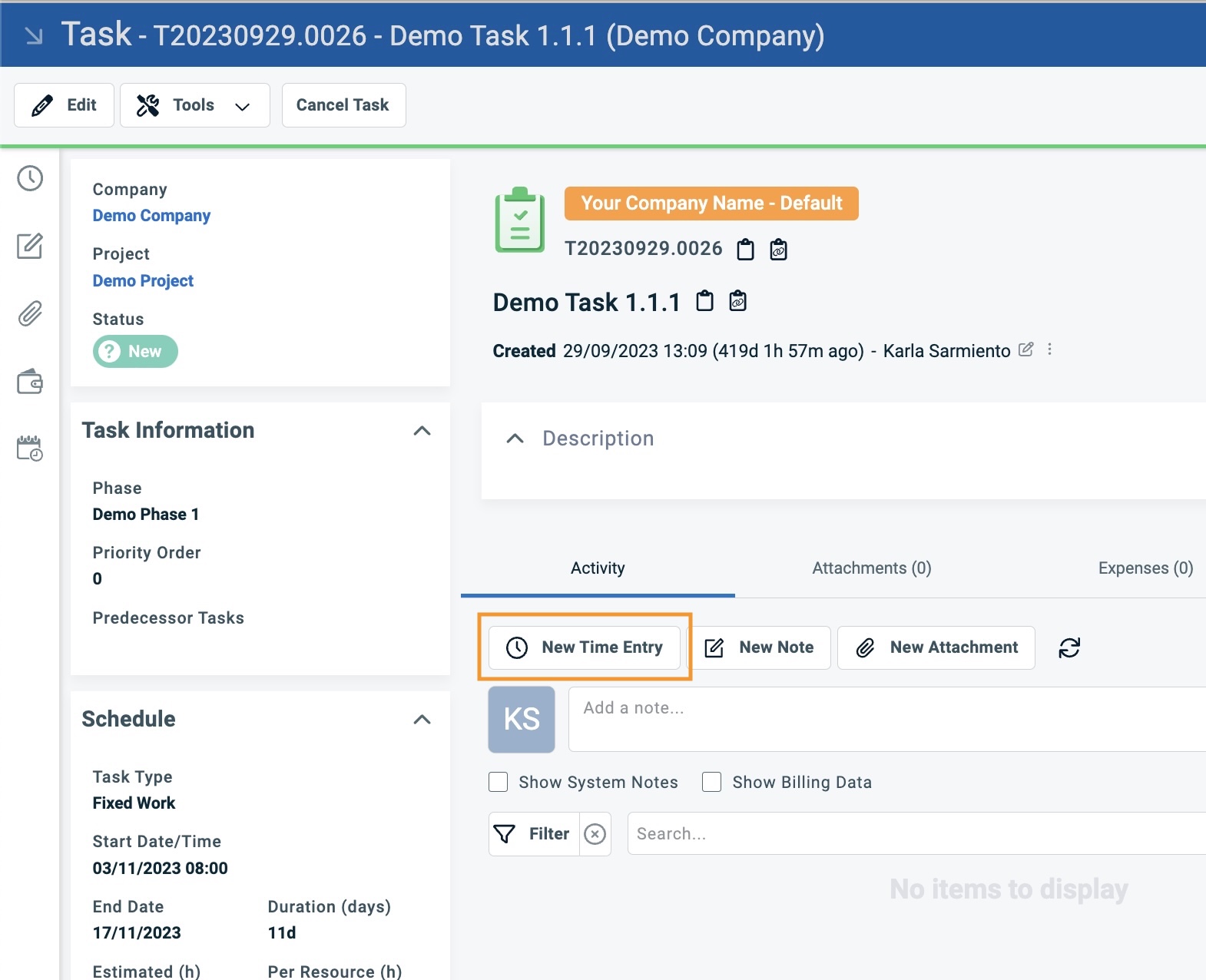
Accountability matters in any project, and Autotask's task and time tracking keep progress visible. Team members can update task statuses in real time, giving you a clear view of where things stand. This is particularly useful for identifying and addressing delays before they escalate.
Time tracking also provides a detailed log of how resources are spent. Whether you are managing billable hours or analyzing productivity, these insights can be used to optimize future projects. Regularly reviewing task and time data helps you pinpoint inefficiencies and refine your workflows.
How to Track Time:
The Dispatch Calendar lets project managers visualize team availability and task assignments in real time. Combined with service calls, it gives you granular control over when specific tasks get worked on and by whom.
We use service calls for every project task, not just onsite visits. This lets us track completion per phase in real time and keeps engineers clear on their schedule.
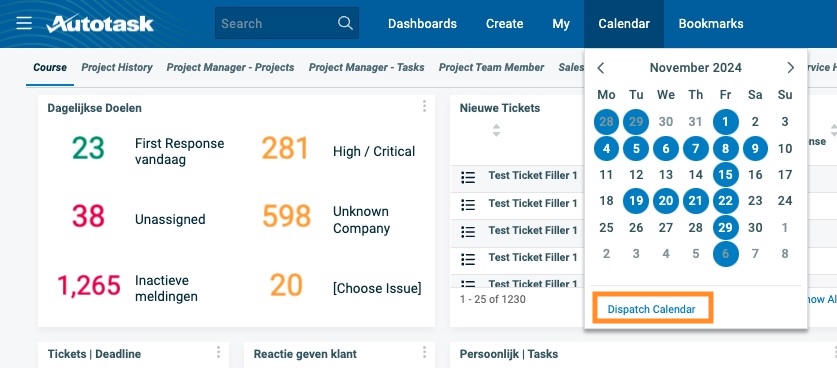
See our full walkthrough of the Dispatch Calendar with screenshots and configuration steps
Autotask's reporting and dashboard features provide real-time data on progress, resource utilization, and profitability. A well-built dashboard answers specific questions for the project manager role: which projects are on track, where planning bottlenecks are emerging, and whether hours are being spent within budget.
How to build a project management dashboard that actually drives decisions
Not everything belongs in a project. Smaller changes, like onboarding a single user or swapping a monitor, fit better as tickets with a change management workflow. The distinction matters because it determines which tools, automations, and reporting you can use.
Our breakdown of when to use projects vs tickets in Autotask
Many MSPs still manage projects in Excel, Planner, or Monday.com alongside their PSA. The problem is that project data ends up disconnected from tickets, time entries, and billing. Autotask keeps everything in one system, which means less manual reconciliation and more accurate reporting.
7 reasons we recommend managing projects inside Autotask instead of a separate tool
If your team has mastered Autotask's native project features but still needs advanced planning, resource forecasting, or analytics, integrating a specialized tool is the logical next step. The key is choosing something that talks to Autotask natively so your data stays centralized.
Karla Sarmiento
Head of Customer Success @ Proxuma
This article is reviewed by: Jasper van Horssen
Written on: Modified: